YouTube Transcript With Timestamps: How to Show, Hide, and Download Them (2026)

YouTube Transcript With Timestamps: How to Show, Hide, and Download Them (2026)
Want to turn off the timestamps in a YouTube transcript? Open the “…more” menu below the video, choose “Show transcript,” then click the three-dot menu at the top of the transcript panel and select “Toggle timestamps.” That column of 0:12, 0:45 markers disappears and you’re left with clean, continuous text. Click the same option again to bring them back. That’s the direct answer.
But the toggle in the panel is rarely where people actually get stuck. The real friction lives in its three variants: you want to download a transcript that keeps timestamps for citing; you want a clean, timestamp-free block of text to paste or feed to AI; or you can’t tell which of SRT, VTT, and plain text keeps the timestamps and which strips them. This guide settles all three — and spells out the trade-offs the comparison tables never mention.
Table of Contents
- Quick answer: show or hide timestamps in the YouTube panel
- When you need timestamps, and when they get in the way
- How to download a YouTube transcript with timestamps
- How to get a clean transcript without timestamps
- Timestamp formats: choosing between SRT, VTT, and plain text
- Putting timestamped transcripts to work: AI, notes, and citations
- FAQ: YouTube transcripts and timestamps
Quick answer: show or hide timestamps in the YouTube panel
Let’s nail the two most-searched actions first. YouTube’s web player has a built-in transcript panel, and it shows timestamps by default.
Show the transcript: Click “…more” under the video → “Show transcript.” A column of timestamped text opens to the right (or below, on mobile). Click any line to jump to that point in the video.
Hide the timestamps: In the transcript panel, click the three-dot menu at the top right → “Toggle timestamps.” The time-code column collapses, leaving continuous plain text that’s easier to select in one sweep. Click again to restore it. YouTube documents this behavior on its captions and transcript help page.
One catch: the toggle only affects what you see in the panel — not necessarily what lands on your clipboard. Select-and-copy from the panel and YouTube sometimes drags the time codes along anyway. To cleanly export with or without timestamps, use the methods in the next two sections.
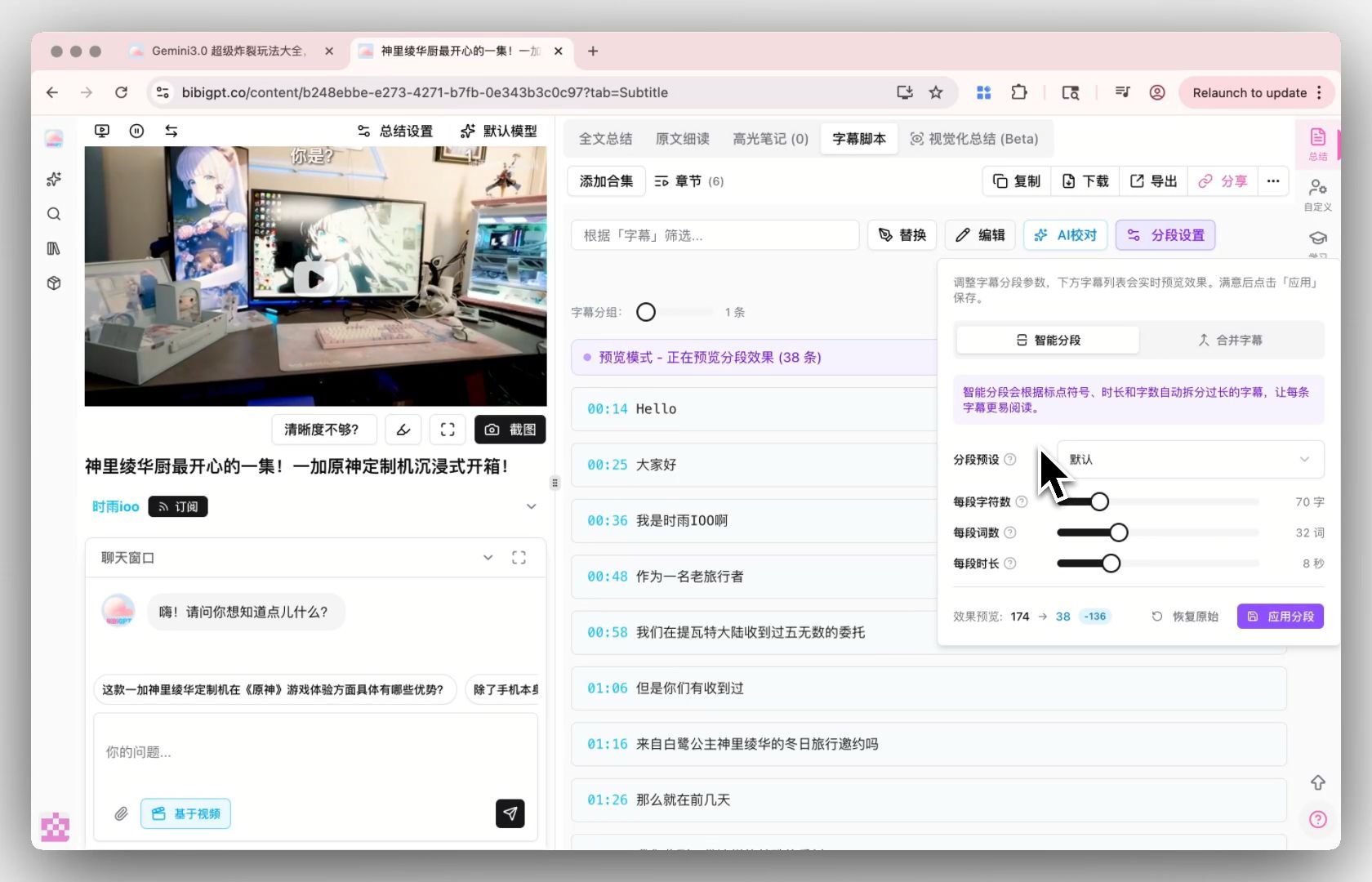
The transcript panel segments text by timestamp by default — great for navigation, but the time codes get in the way the moment you want to hand the whole block to another tool.
Practical rule: “Toggle timestamps” in the YouTube panel changes the display, not what you copy out. To control the exported format, pick the right download method instead of fighting the toggle.
When you need timestamps, and when they get in the way
More timestamps isn’t better, and fewer isn’t either — it depends entirely on what you’re doing with the transcript.
When you need them: Study notes that reference “the argument he made around the 12-minute mark”; video citations that need to point back to an exact spot; skimming a long course by chapter; QA or caption proofing where you align text to audio line by line. In these cases the time code is your coordinate system — lose it and you’re hunting for a needle in a wall of text.
When they get in the way: You want to paste the whole transcript into a doc and read it; you want to feed it to AI for a summary or rewrite; you’re sending a colleague a rough meeting record. Here, a 0:47 every sentence or two breaks the reading rhythm and makes a model waste attention on meaningless numbers.
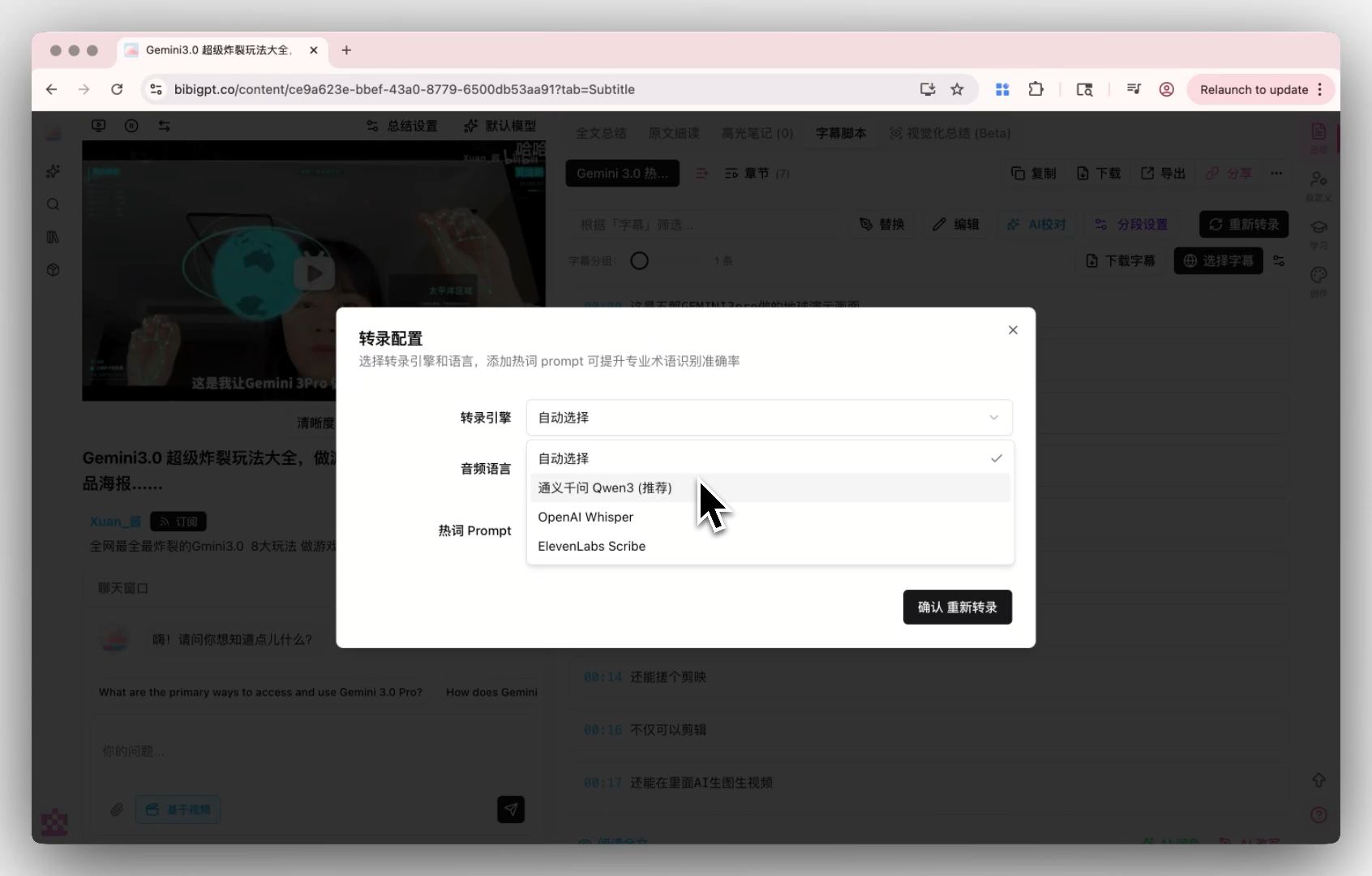
When you need clean text, a structured transcript you can export with or without timestamps is far more flexible than YouTube’s raw panel.
Practical rule: Ask yourself whether this transcript is for locating or for reading. Keep timestamps for locating, strip them for reading — the use case decides the format, not the other way around.
How to download a YouTube transcript with timestamps
If what you want is a file that keeps the timestamps, the most reliable route is to export as a subtitle format (SRT or VTT). In both, the time codes are written into the file structure — they won’t get lost.
A handy YouTube transcript generator compresses this to two steps: paste the link, pick a “with timestamps” export format. It has two underlying paths, and the difference matters:
- Extract existing captions. If the video already has captions (creator-uploaded or auto-generated), the tool pulls them out with their time codes attached. Fastest — but you inherit whatever accuracy the captions had.
- Re-transcribe the audio. If captions are missing or clearly wrong, a dedicated transcription engine regenerates the text from audio and stamps it with timestamps, usually more accurate on names and jargon.
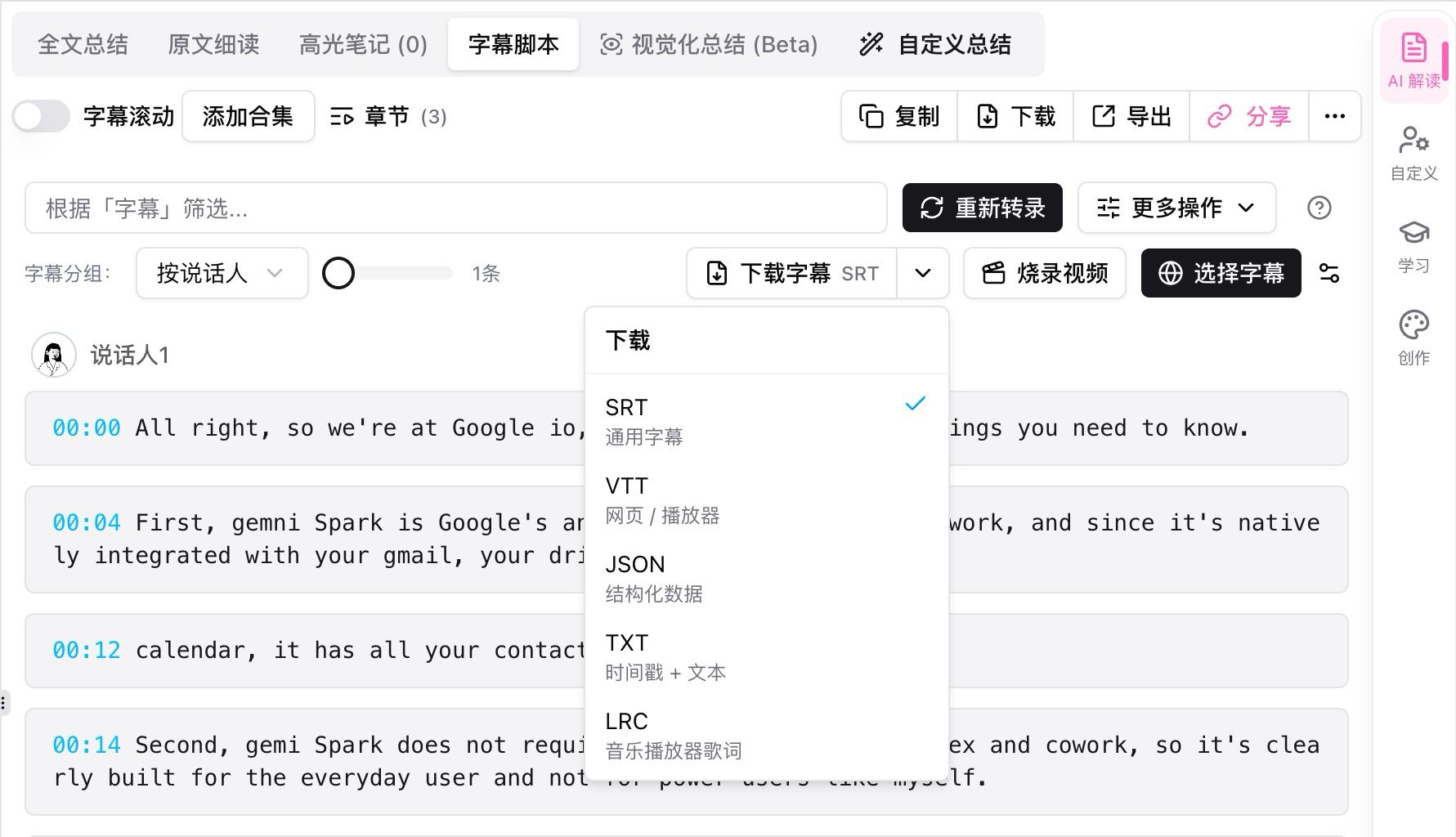
Choose SRT or VTT on export to keep the timestamps; choose plain text (TXT) to drop them — a single dropdown decides whether you get a coordinate system or a blank page.
To compare download tools side by side, start with this roundup of the best free YouTube transcript tools — it sorts them cleanly into “downloaders” (which need the video to already have captions) and “transcription engines” (which don’t). That distinction directly decides whether a given tool can even help with your particular video.
How to get a clean transcript without timestamps
Going the other direction — a single block of continuous text with no time codes — there are two approaches.
Export as plain text (TXT). Most generators offer a TXT option on export, and it’s naturally timestamp-free continuous paragraphs. This is the least-effort path. If you just want to read or paste, pick TXT.
Use a “to text” converter in one step. A results-focused YouTube to text converter hands you clean paragraph text segmented by meaning rather than chopped up by time code, so it reads like an article instead of a caption stream.
If you already have a timestamped SRT and want to strip the codes by hand, it’s not hard: every block in an SRT is a fixed “index → time-code line → text” structure. Delete the index lines and the lines containing -->, keep the text lines. But unless you’re doing one or two files, choosing a timestamp-free format at export time always beats cleaning up afterward.
Decision filter: If you might later “go back to the video to check a line,” keep a timestamped version; if you just need to read the content or feed it to AI, export plain text and spare yourself the cleanup.
Timestamp formats: choosing between SRT, VTT, and plain text
The three most common export formats really differ on just three things: do they keep timestamps, can they carry styling, and who they’re for.
| Format | Timestamps | Typical use | Notes |
|---|---|---|---|
| SRT | Kept (00:00:12,000 --> 00:00:15,000) | Video editing, captioning, citation lookup | The most universal subtitle format; nearly every editor reads it — see the SubRip entry |
| VTT | Kept (00:00:12.000 --> 00:00:15.000) | Web players, accessibility captions | The web-native caption standard with styling and positioning; spec at the W3C WebVTT standard |
| Plain text TXT | Dropped | Reading, pasting, feeding to AI | One continuous block — cleanest, and easiest for a model to digest |
SRT and VTT are structurally close; the main differences are the millisecond separator in the time code (SRT uses a comma, VTT a period) and VTT’s extra styling and positioning support, which the WebVTT entry lays out clearly. For the vast majority of “I want a timestamped transcript” needs, SRT is enough; reach for VTT only when you’re doing accessibility captions in a web player.
Practical rule: Export SRT for “with timestamps,” TXT for “without.” VTT is the special case for web players — don’t agonize over it for everyday use.
Putting timestamped transcripts to work: AI, notes, and citations
Once you have a timestamped transcript, the real payoff is letting AI do verifiable work with it. Feed a model text with time codes and you can ask it to tag each point in the summary with the minute it came from — so you get the condensed version and a one-click jump back to the source to check it. You can even hand the fetching itself to an agent so you’re not the courier between YouTube and the model.
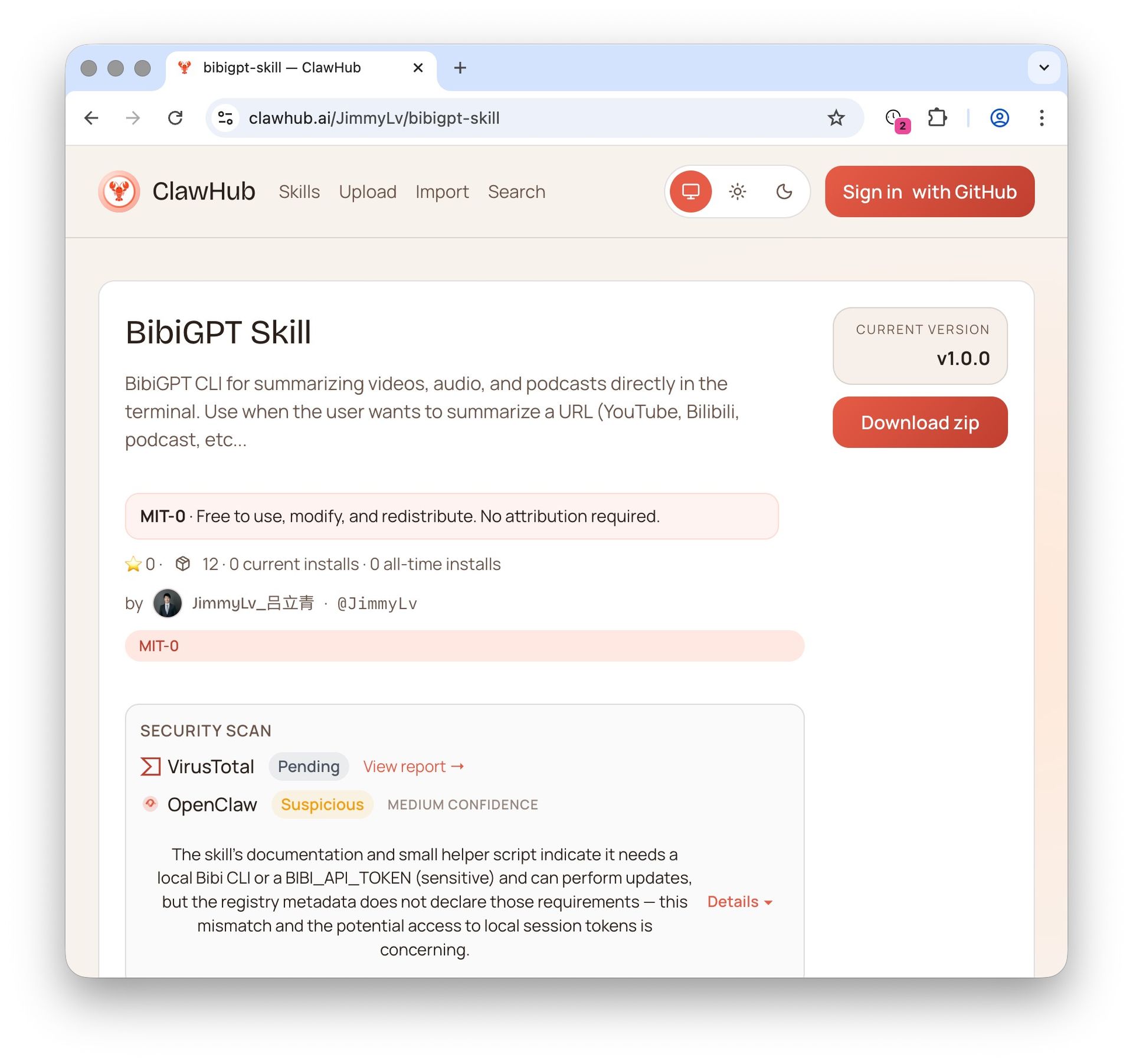
Give an AI agent the ability to fetch and read a video, and it pulls the timestamped transcript itself — the link goes to the tool, not to you.
Here’s what “paste a link, get structured chapters and timestamped takeaways” looks like before you even bring your own model into it:
Summarize any video in seconds
Pick a sample below to see the AI summary — TL;DR, key points, and jump-to timestamps.
TL;DR: Karpathy builds a GPT-style language model from scratch in code, explaining every piece — from a tiny character-level model up to the full Transformer.
Key points
- Start with a bigram model, then add self-attention so tokens can "talk" to each other
- A Transformer block = multi-head attention + feed-forward + residual connections + layer norm
- Training is just predicting the next token; scale and data do the rest
- The same architecture behind nanoGPT is what scales up to ChatGPT
Jump to
- 00:07 Why build GPT from scratch
- 08:23 Self-attention, intuitively
- 1:00:00 Assembling the Transformer block
- 1:35:00 From nanoGPT to ChatGPT
A pasted link becomes chaptered, timestamped takeaways you can hand straight to any model.
To feel how much cleaner a structured transcript is than raw captions, watch a dense, jargon-heavy lecture — exactly the kind of video where auto-captions fall apart and timestamps matter most for finding your way back:
Dense, term-heavy talks are where auto-captions break down — and where accurate timestamps earn their keep.
If your goal is to hand the transcript to an AI agent like Claude for follow-up questions, the timestamped version is especially useful — you can ask it to “pull out just the few minutes about pricing.” For the details on how to feed a YouTube transcript to a model, when to paste manually, and when to let an agent fetch the video itself, see how to get a YouTube transcript for Claude. And to choose among more download and extraction tools, browse our roundup of YouTube subtitle downloader and extractor tools.
Practical rule: Keep timestamps when you feed a transcript to AI, and explicitly ask it to tag citations with the time code — that upgrades a summary from “sounds good” to “can be verified.”
FAQ: YouTube transcripts and timestamps
How do I turn off timestamps in a YouTube transcript?
Open the transcript panel, click the three-dot menu at the top right, and choose “Toggle timestamps.” The time-code column hides; click again to restore. Note this changes the panel display and won’t always change what you copy out.
How do I download a YouTube transcript with timestamps?
Paste the link into a transcript generator and export as SRT or VTT — both write the time codes into the file structure, so they won’t be lost. Choosing plain text (TXT) drops the timestamps.
Are YouTube auto-caption timestamps accurate?
The time codes themselves are usually fine, but the auto-caption text is only so-so — it stumbles on homophones, accents, and jargon. If you need citations you can trust, re-transcribe from audio with a dedicated transcription engine.
Can I get just the words without timestamps?
Yes. Export as plain text (TXT), or use a “to text” converter to get continuous text segmented by meaning. If you already have an SRT, delete the lines with --> and the plain-number index lines.
From transcript to answer: a workflow that actually holds up
People who use this smoothly don’t agonize over “timestamps on or off” — they split by purpose: keep a timestamped SRT for locating, and save a plain-text copy for reading or feeding to AI. Here’s a loop worth copying:
- Decide the purpose first — going back to check the video (keep timestamps) or reading / feeding to AI (drop them).
- Export the right format — SRT with timestamps, TXT without, VTT only for web captions.
- Re-transcribe if the captions can’t be trusted — when raw auto-captions are bad, regenerate from audio with a transcription engine.
- Keep it verifiable when feeding AI — retain the time codes and have the model tag citations for a one-click jump back.
- Save it as a reusable summary — drop the result into your notes, or turn it into a YouTube AI summary with chapter timestamps.
BibiGPT is built to nail exactly this hand-off: paste a YouTube link (or one from 30+ other platforms) and it gives you a clean, structured transcript and summary with chapter timestamps — and lets you keep asking follow-ups. So whether you want it “with timestamps to cite” or “without timestamps to read,” the text in your hands is one you can trust.
Want a YouTube transcript you can export with or without timestamps, your call? Try BibiGPT free — paste a link, pick your format, and get straight to work.
BibiGPT Team
Popular tools
More in this series
- Best Free YouTube Transcript Extractor 2026: 7 Tools Compared
- YouTube Subtitle Extractor: Best Downloaders Compared (2026)
- Free YouTube Transcript Generator: Top 5 AI Tools Ranked (2026)
- How to Get a YouTube Transcript for Claude (and Any AI Agent)
- Best Video Summarizer & YouTube Transcript MCP Servers for AI Agents (2026)