
BibiGPT v4.548.0: LongCat 2.0 & Hunyuan 3, Player Layout Presets, and a Folder Tree for Collections

Hi everyone — this release lands in two directions: read faster and put it to work. The model picker gained two new options that handle long content without truncation; the player line got a full pass — drag the height freely, then save your setup as a preset you can restore in one click. On the other side: AI-polished text can now be checked against the original in place, adding to a collection became a folder tree, and Credits Stats gained an API usage dashboard.
⚡ Read faster
New models: LongCat 2.0 and Hunyuan 3
Two- or three-hour videos and long interviews used to hit the context ceiling: the tail got truncated, the summary covered only the first half, and everything important later on was gone.
The model picker now carries two options flagged New:
- Meituan: LongCat 2.0 — built for very long context, ideal for full summaries of long articles, videos, and podcasts
- Tencent: Hunyuan 3 — a new-generation general model with strong Chinese comprehension and phrasing
Both are grouped by vendor with vendor icons and pricing badges, so they are easy to spot. The default recommendation also changed: Gemini 3.0 Flash is now marked “Legacy” and is no longer the default pick. If it was your habit, switch by task type — LongCat 2.0 for long content, Hunyuan 3 for everyday Chinese-language work.
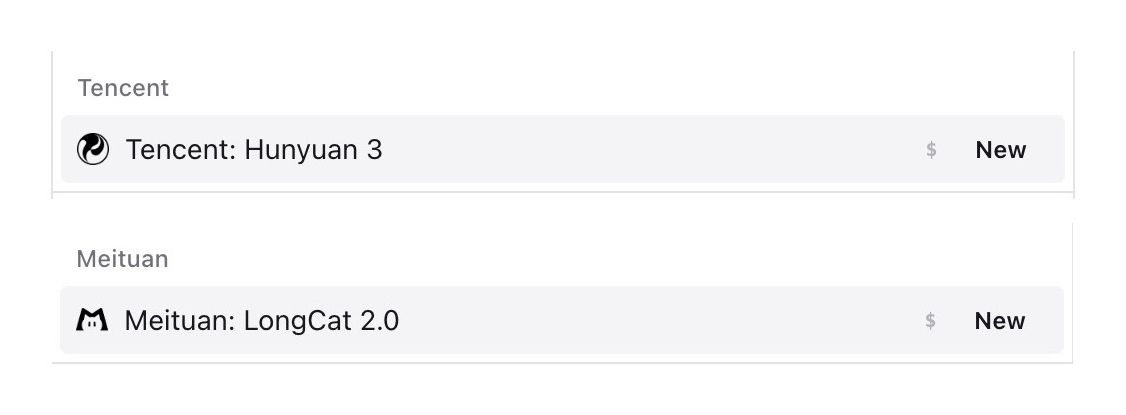
Screenshot: BibiGPT · LongCat 2.0 and Hunyuan 3 in the model picker
Open any content page and expand the model picker under the summary area or the chat input — the switch takes effect immediately.
The player height is now yours to drag
Watching a video while reading the summary and chatting used to mean a fixed block eating the top half of the screen, leaving a narrow strip for subtitles and conversation — you had to scroll every few lines. On mobile it was worse: two or three readable lines.
The player is no longer a fixed-height dead block. Between the video and the control bar there is a horizontal drag handle (the small grey bar right above the Screenshot / Fullscreen row). Hold and drag it up or down and the height follows in real time; touch dragging works on mobile too.

Screenshot: BibiGPT · dragging to resize the player
Pull it taller for demos and charts; push it down when you are reading subtitles, summaries, or following up with AI — the text area gets the room. It is pure layout, so playback keeps going and a running summary or chat is never interrupted.
Three layout presets, one click apart
Most people use BibiGPT in several distinct ways: skimming for highlights, reading line by line, or arranging video, transcript, and chat exactly where they want them. Rearranging panels every single time — and losing it all on the next visit — is now a one-click switch instead.
Click the ⋯ at the far right of the player control bar and you will find a new Layout mode group:
- Highlight layout — for fast skimming and highlight notes
- Study layout (
Beta) — for close reading, with timestamp sync, copy shortcuts, and collapsible headings - Free layout (
Pro) — arrange the video, transcript, and AI chat areas yourself - Save current layout — store the current arrangement (player height included) as a personal preset
Saved presets appear under My layout presets as name + date; click to restore, or use the trash icon to remove.
Screenshot: BibiGPT · the “Layout mode” menu and saved presets
🛠️ Put it to work
Check the original transcript right under the polished text
AI-polished transcripts read far better, but when you are taking notes you often want to verify what was actually said — whether a detail was smoothed away or dropped. Until now the original either stretched the page endlessly or lived in another tab that cost you your reading position.
Open a polished piece, switch to AI Polish or AI Rewrite, and pick the Stacked view: the polished text sits on top, the original folds underneath — collapsed by default to keep reading clean, one click to expand the timestamped raw transcript. Four view modes are available above the text area: Compare, Stacked, Polished | Original, and Polished | Translation.
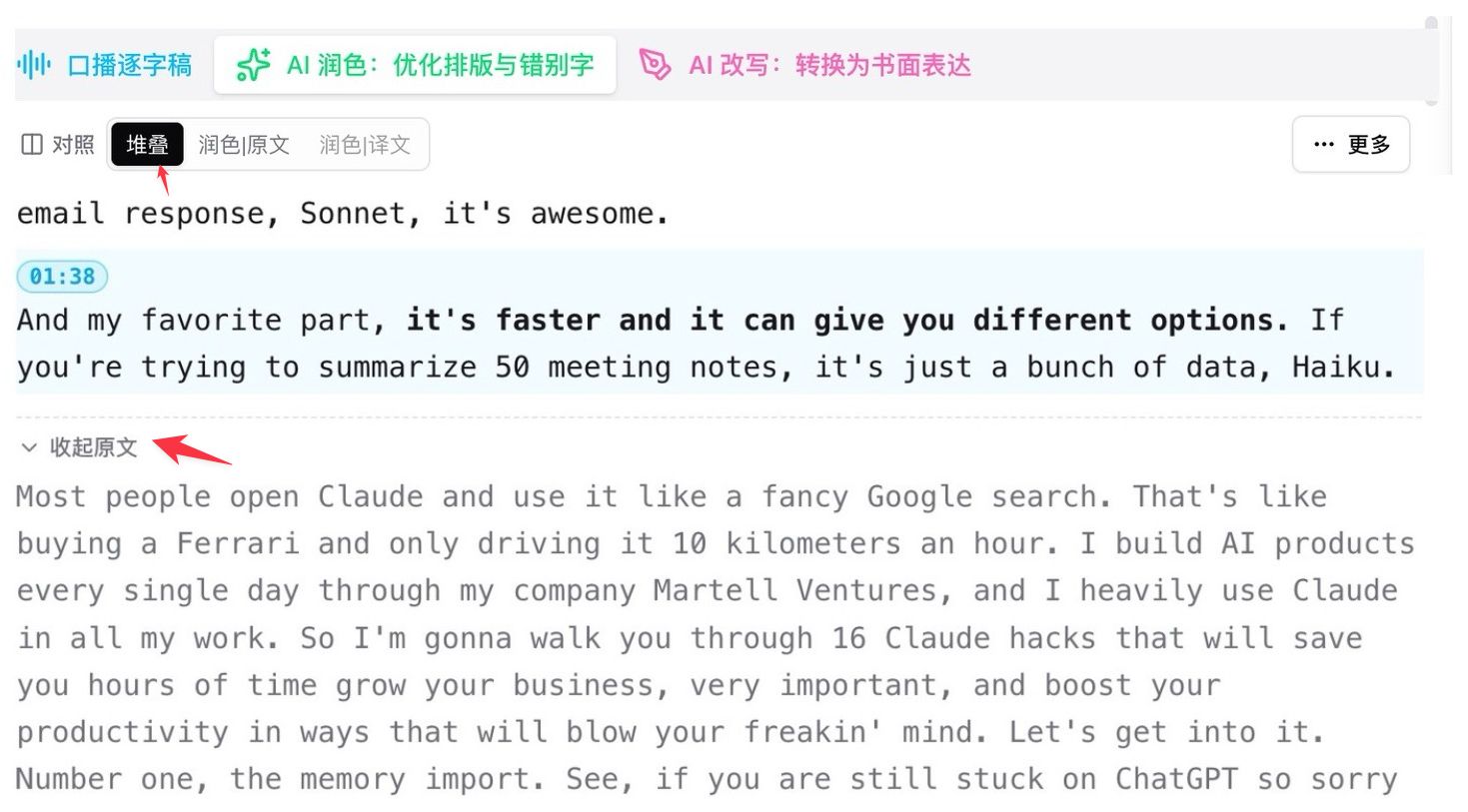
Screenshot: BibiGPT · the expand/collapse original block under polished text
If you write deep notes, quote sources, or fact-check, you get both: the readability of polished text and the ability to jump back to the exact wording.
Add to collection, now a folder tree
Once you have dozens of collections in a parent-child structure, the old flat list in “Add to collection” made parents and children look identical — you guessed by name, scrolled forever, and sometimes filed things in the wrong place.
Add to existing collection is now a folder tree: parents carry an expand arrow, children are indented beneath them, and each name shows how many items it holds. Compact rows fit more on screen, you can tick several collections and add in bulk, and the eye icon on each row previews the contents.
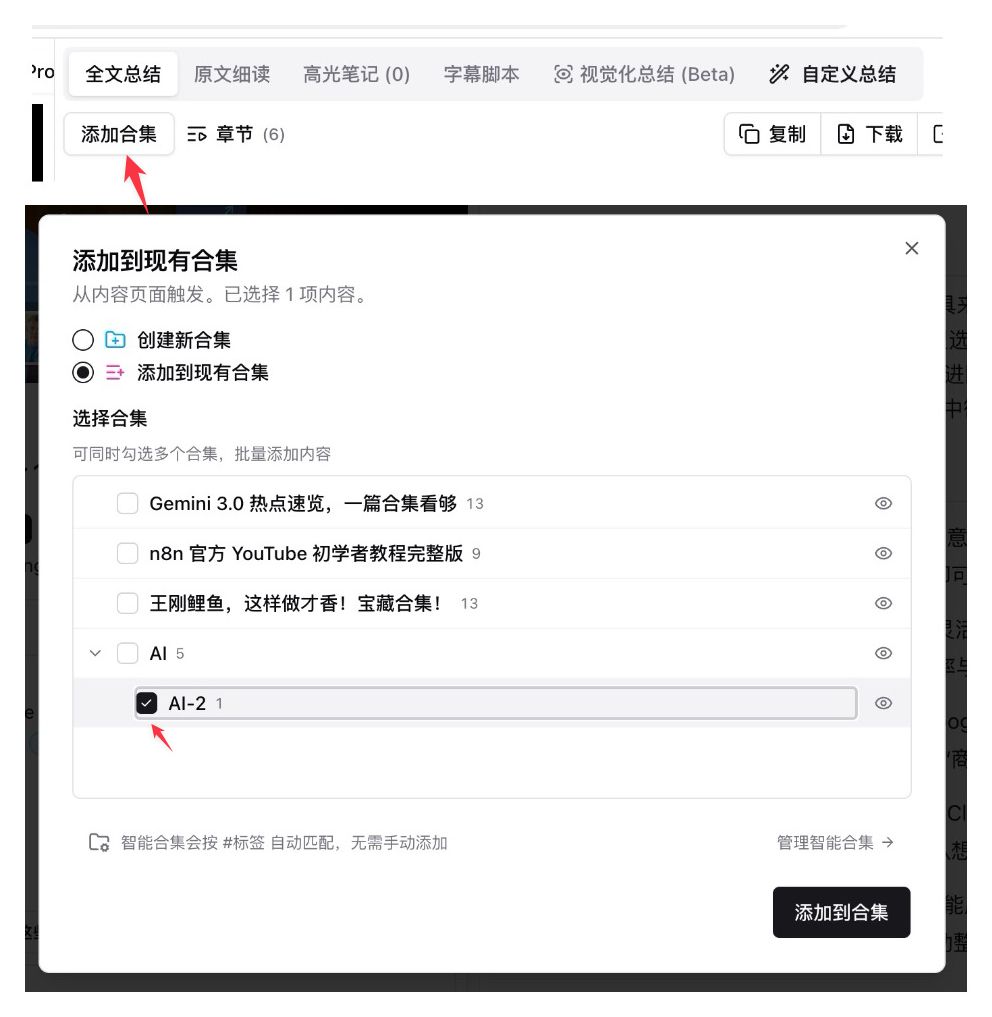
Screenshot: BibiGPT · the “Add to existing collection” tree selector
The collection picker inside the content form now shows the same indentation, so both entry points read the same way. A note at the bottom is worth remembering: smart collections match by #tag automatically and never need manual filing.
An API usage dashboard in Credits Stats
If you script BibiGPT’s API for batch audio and video work, it used to be a black box: no view of how many calls ran, what each one cost, or which day went off the rails — usually you noticed only after a large chunk of the balance was gone.
Credits Stats in the left menu now has an API tab (the page carries five: Trends, Breakdown, Ledger, API, Rules). It lists calls made through an API Token or an Agent Skill for the current calendar month — per-endpoint detail you can use to confirm your scripts are behaving as expected, so anomalies surface early. The Duration reconciliation block below it still shows how many minutes each duration-billed call actually consumed, cross-checking the call log.
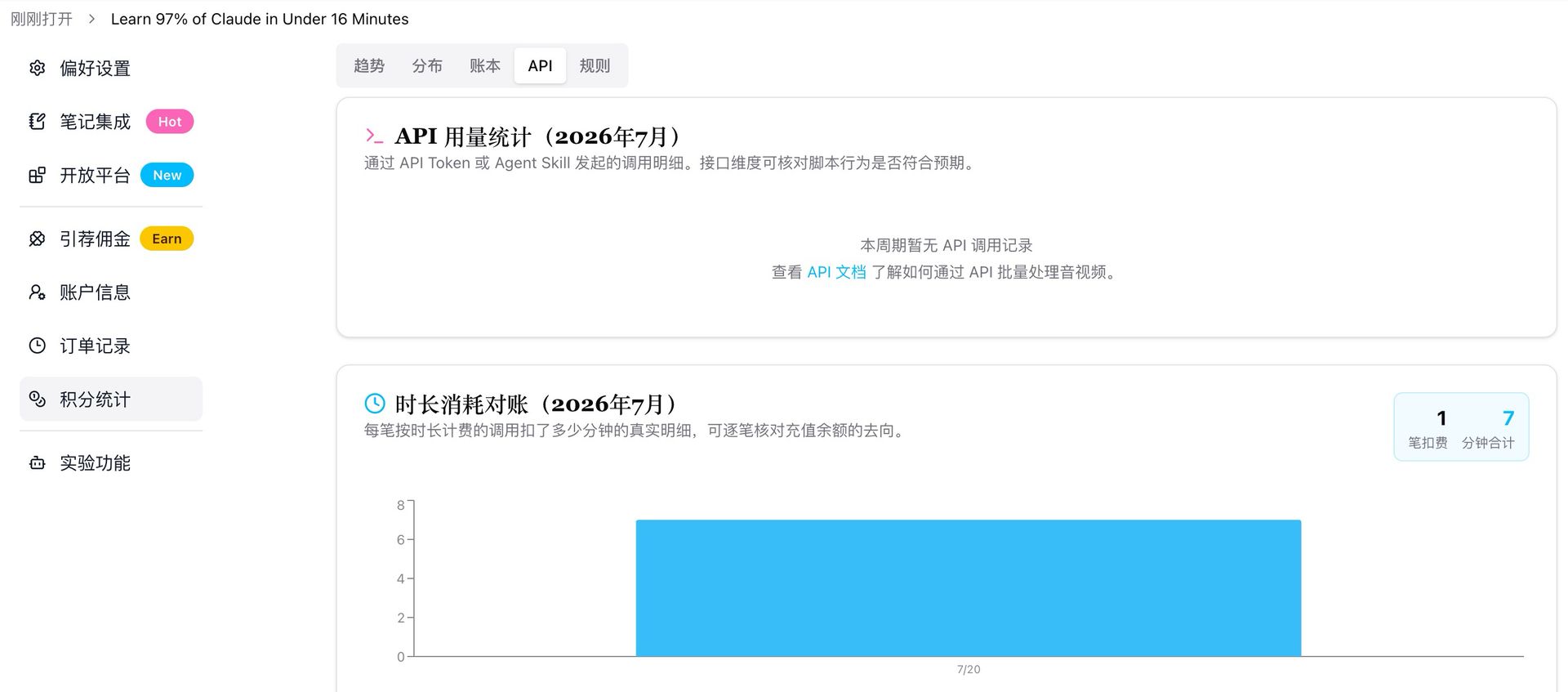
Screenshot: BibiGPT · Credits Stats · API usage dashboard
Alongside it: low-balance email alerts. When your balance drops below the threshold you get an email, instead of discovering an empty tank halfway through a batch job.
Other recent improvements
- Member compute now tops itself up: when your AI-feature allowance runs out, the system draws from the minutes ledger automatically — no manual switching, and video transcription is unaffected
- The selection and polish toolbars were tidied up, with less-used actions moved into a “More” menu; subtitle dragging is smoother, drag hints appear on hover, and the video frame keeps a consistent 16:9
- Fixed an embedding error that kept some YouTube videos from playing on-site
- The desktop app now caches audio-only content (podcasts) locally for playback, and the endless spinner when exporting an article was fixed
- Fixed large collections wrongly reporting “nothing summarized yet” before export
- Chapter summaries on mobile now load through the same path as the web app, fixing cases where they never appeared
- The slide-extraction showcase page now jumps straight to the matching feature on the main site
Wrap-up
In one line: long content has a model that fits, your layout can be frozen the way you work, and both your notes and your ledger are easier to verify. On the “read faster” side that is LongCat 2.0 / Hunyuan 3 plus player height and three layout presets; on the “put it to work” side, the original-text fold, the collection folder tree, and the API usage dashboard.
Let compute save your brainpower — watch faster, search everything, use it well.
Found a bug or have feedback? We would love to hear it.
- 🌐 Website: bibigpt.co
- ✨ Explore features: bibigpt.co/features
- 💻 Desktop app: bibigpt.co/download/desktop
- 📱 Mobile app: bibigpt.co/app
The BibiGPT Team
Popular tools
本系列更多文章
- AI Competitive Intelligence Workflow: Build Industry Monitoring with BibiGPT Video Summaries
- Lessons From Shipping BiliGPT: Two Cold-Start Growth Tactics Behind a GPT-3 Side Project
- [BibiGPT Growth Series] Episode 1 | How AI Summaries for Bilibili Were Born
- BibiGPT Advanced Guide 2026: Download + AI-Summarize Videos from WeChat Channels, RedNote, TikTok, and Enterprise Intranet Sites
- Chat with Any Video: How to Ask AI Questions About Videos Instead of Watching the Whole Thing (2026)