YouTube Summary AI Free (No Login): Summarize Long Videos in Seconds (2026)

You open your subscriptions on the train. A 40-minute interview, a two-hour talk, last night’s livestream replay—all stacked up. The moment you hit play you already know half of it won’t get watched today. And what you actually need isn’t the video itself. It’s the answer to one question: what did that person actually say?
That’s the point where YouTube summarizing turns into a decision. Watch it start to finish, skim at 1.5x, or hand it to a YouTube summary AI that watches for you and hands back the core as text. The answer is obvious. The only real question is which tool, in which order.
This guide skips the “7 clever tricks for AI YouTube summaries” fluff. It walks three concrete free paths with screenshots, then closes with a comparison table and a five-step workflow you can start today.
Why a YouTube summary AI matters more in 2026
Short clips are everywhere, but the content actually worth learning from keeps getting longer—two-hour podcasts, 90-minute engineering talks, full product keynotes. People watch roughly 19 hours of YouTube per week (Datareportal 2025 global digital report), and a big chunk of that ends in “I should have run it at 1.5x” or “I should have taken notes.”
A YouTube summary AI automates the “should have.” The moment a video becomes text, it becomes skimmable, searchable, paste-able—so your attention goes only to the videos that deserve full focus.
Practical rule: If the value is in what was said, a text summary is almost always more useful than the original video.
YouTube is internally testing an Ask AI feature you can query while watching (TechCrunch coverage, April 2026), but it’s still limited to US Premium users. For most of the world, third-party YouTube summary AI is the only option for now.
Method A: Paste a link on the web (the fastest free path)
The lowest-friction route: open a web page, paste a YouTube link, wait about ten seconds.
When it fits
- Occasional one-off summaries
- A locked-down work laptop with no install permissions
- A mobile browser, on the go
How to do it free (5 steps)
- Open BibiGPT web
- Copy the YouTube URL
- Paste it into the input field and press Enter
- Wait 10–30 seconds (depends on length)
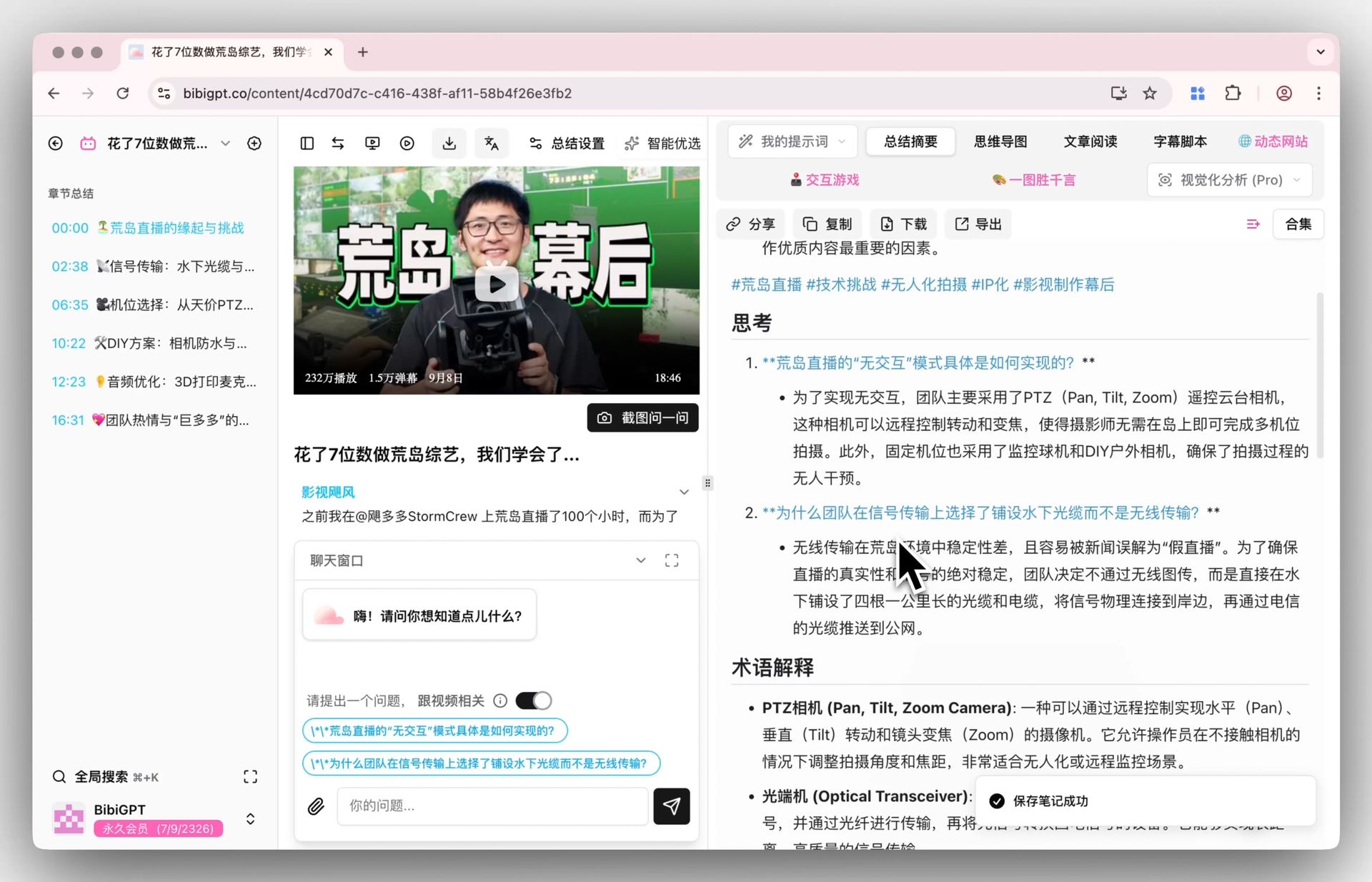
- Get a structured deep summary: core summary, highlights, thinking questions, glossary
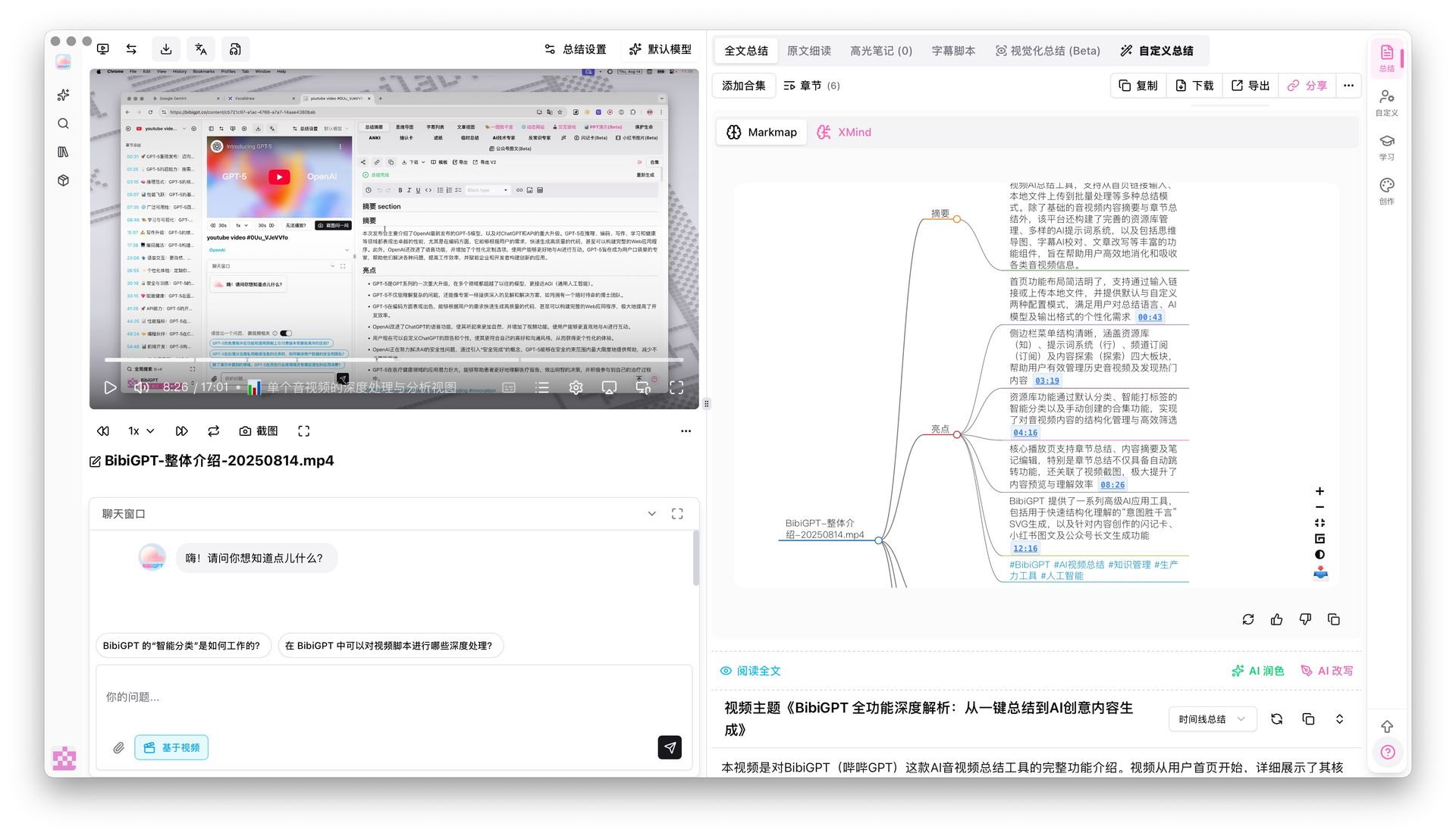
The free tier runs all five steps. With free YouTube summary you get paste-to-summary, mind map, basic AI chat, and Markdown export. For 1–3 videos a day, free is plenty.
Practical rule: Occasional use? The web tool is enough. Daily use? Move to the extension or desktop app.
Method B: The Chrome extension, right on top of YouTube
The second path embeds the AI summary next to the YouTube player, so a summary is one click from any video page.
When it fits
- Anyone dealing with several videos a day on YouTube
- People who hate bouncing between tabs
- Long lectures you want to read chapter by chapter
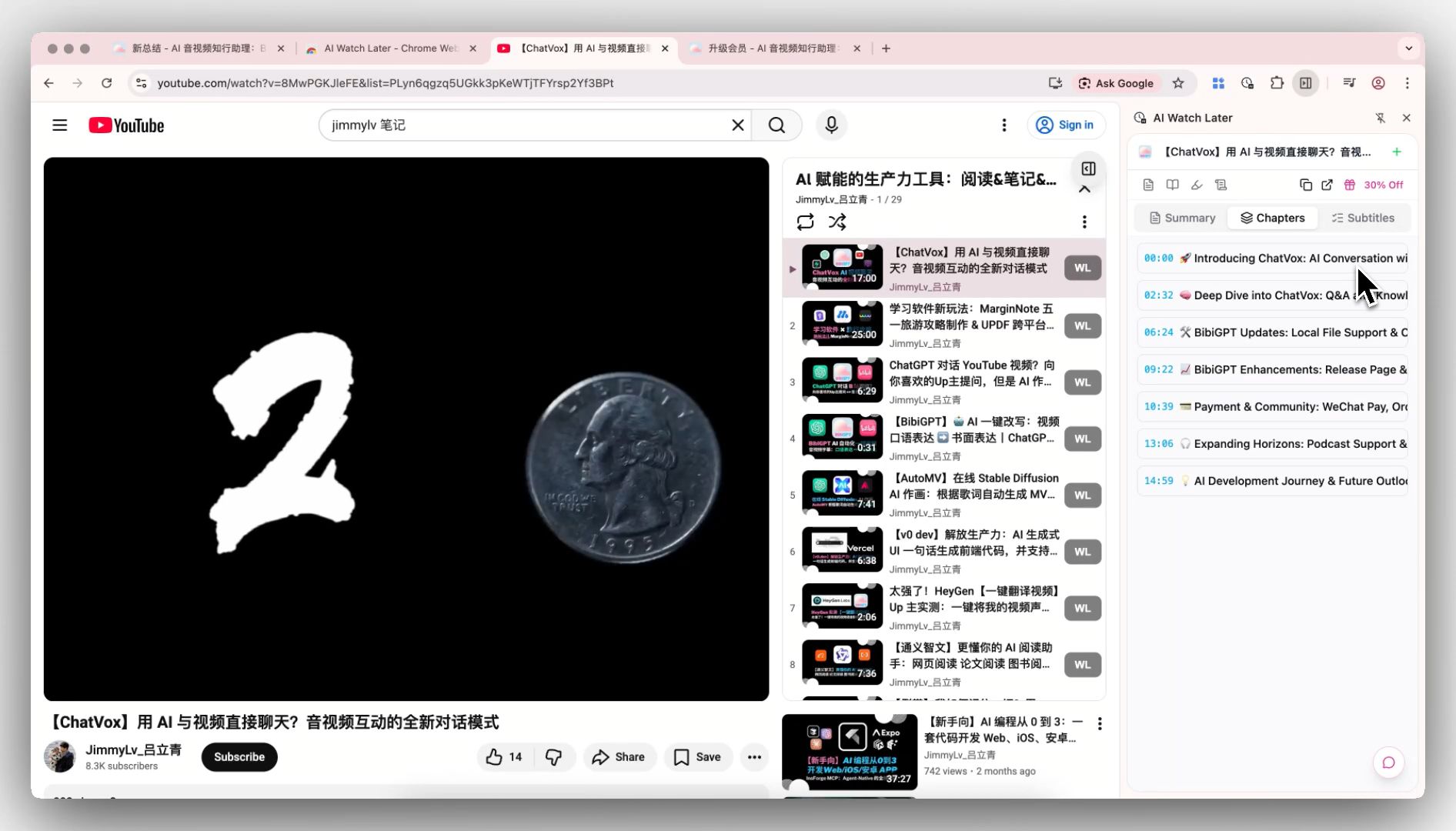
Once installed, a summarize button appears on YouTube video pages. Click it and chapter summaries unfold in place; click a chapter to jump straight to that timestamp. The demo below shows it in action.
https://www.youtube.com/embed/dQw4w9WgXcQ
When a question comes up mid-read, you can ask the AI right there. “Expand just the third point” becomes a conversational thread rather than a rewatch.
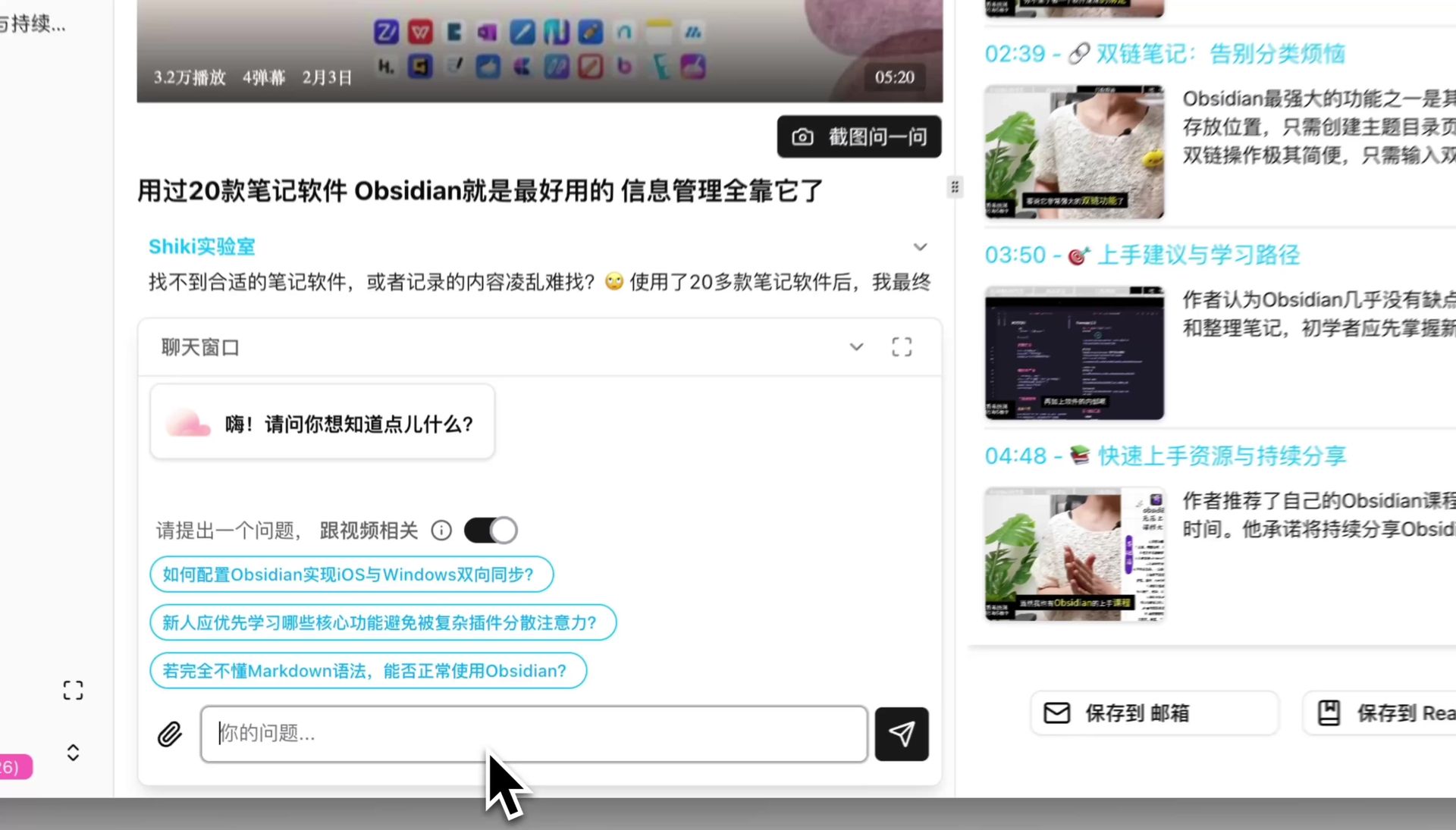
Practical rule: Want to ask “while watching”? Use the extension. Want to build an output “after watching”? The web and desktop apps fit better.
Comparing YouTube summary AI tools: what to actually judge
When picking a YouTube summary AI, three axes decide real satisfaction: platform coverage, long-video handling, and export quality. A flashy UI matters less than these three.
| Criterion | Web tool (free) | Chrome extension | Desktop app |
|---|---|---|---|
| Best for | Occasional use | Daily use | Batch processing |
| Install needed | None | Browser extension | Yes |
| In-place on YouTube | ✗ | ✓ | Partial |
| Long / batch videos | Limited | Moderate | Strong |
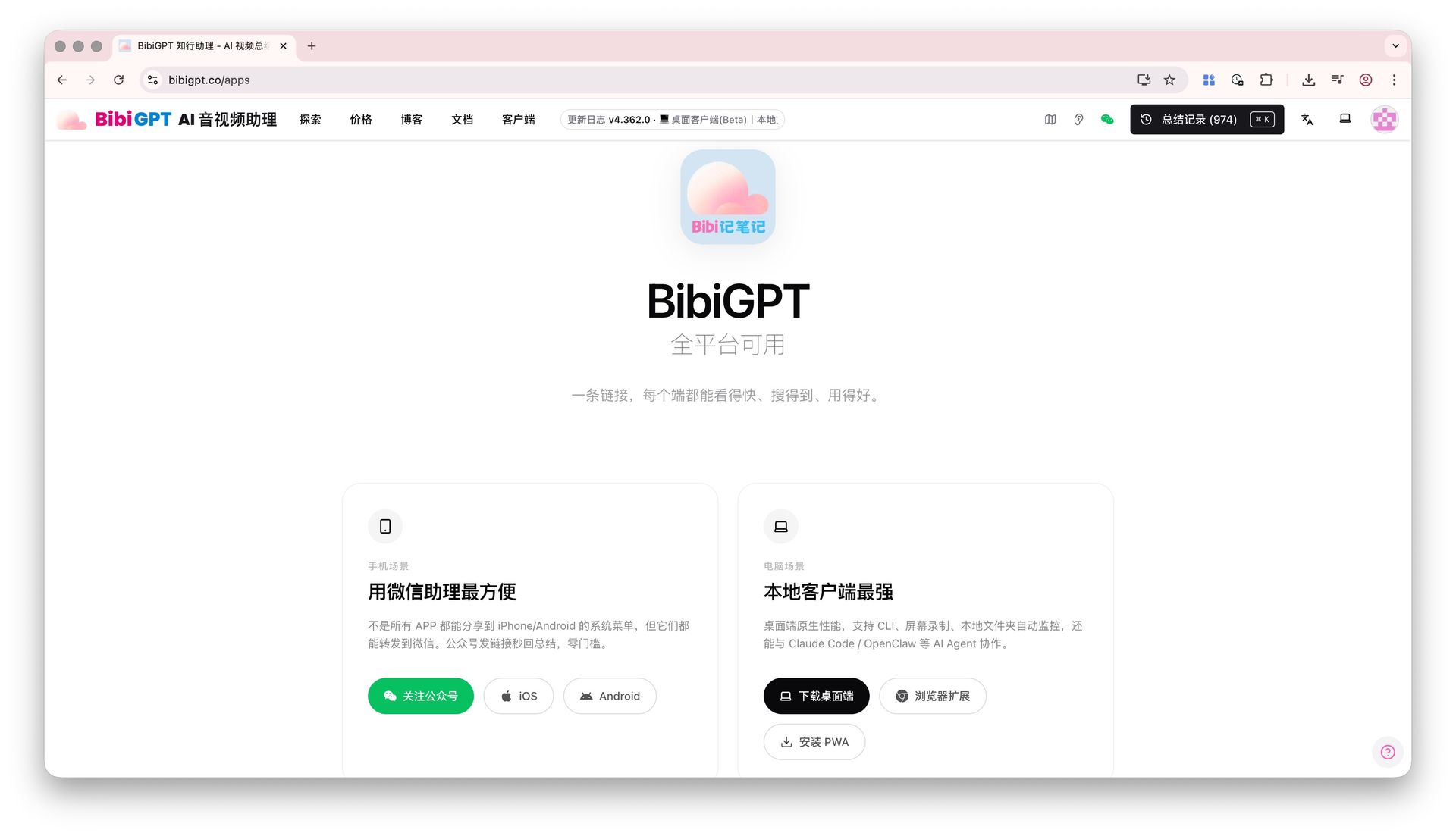
BibiGPT scores well on all three. It supports 30+ platforms (YouTube, Bilibili, TikTok, podcasts, local files), handles multi-hour audio in a single pass, and exports cleanly to Notion and Obsidian. It’s trusted by over 1 million users who have generated more than 5 million AI summaries.
Decision filter: If you plan to move the summary somewhere else—a note app, an article, a doc—export quality matters more than the UI.
Frequently asked questions (FAQ)
Q: Is a YouTube summary AI really free?
The core workflow (paste link → structured summary → mind map → basic AI chat → Markdown export) runs free. Longer videos, premium models, batch analytics, and auto-sync to Notion unlock on paid plans. For 1–3 videos a day, free is enough.
Q: Can it summarize a YouTube livestream?
Past livestreams archived as regular videos: yes. In-progress livestreams: process after the stream ends.
Q: Which platforms besides YouTube are supported?
Bilibili, TikTok, Xiaohongshu, Apple Podcasts, Spotify podcasts, Vimeo, local files, and more—30+ in total.
Q: What about videos with no captions?
Still works. When there are no subtitles, speech recognition transcribes the audio first, then summarizes. Korean, English, Japanese and other multilingual videos are all handled.
Q: Can I use a YouTube summary AI free with no login?
Yes. The paste-a-link web path runs on the daily free quota without an account. Open AI YouTube summary and paste. A Chrome extension is optional; an account only matters when you want a higher daily cap.
Q: Can a YouTube summary AI summarize a lecture?
That’s the main use case in this guide. A 40-minute to two-hour lecture becomes a structured note with chapter timestamps. Use the mind map as the syllabus.
Q: Is there a YouTube summary AI Chrome extension?
Yes — Method B. It shows chapter-by-chapter summaries beside the YouTube player so you don’t switch tabs.
From summary to output: a 5-step workflow
The real reason to learn a YouTube summary AI isn’t “reading the summary”—it’s turning that summary into your own output. Here’s a five-step loop you can run today.
- Paste the link of a video you missed and get a deep summary
- Scan the mind map to grasp the whole structure at a glance
- Click timestamps to verify the chapters you care about
- Ask the AI follow-up questions to fill the gaps
- Export the finished note to Notion or Obsidian as raw material for your next article or talk
The people who get the most from a YouTube summary AI don’t stop at “how do I summarize this?” They ask “what will I make with this summary?” The summary isn’t the end—it’s the start.
Open a YouTube video today and paste it into BibiGPT. If 30 seconds later you understand it better than before, the next step makes itself: do this to every other channel you follow.
Further reading:
- Free YouTube transcript and summary
- Free video summarizer across 30+ platforms
- Complete AI video summarizer guide
- Video summarizer
—— BibiGPT Team
Popular tools
More in this series
- AI Competitive Intelligence Workflow: Build Industry Monitoring with BibiGPT Video Summaries
- Lessons From Shipping BiliGPT: Two Cold-Start Growth Tactics Behind a GPT-3 Side Project
- [BibiGPT Growth Series] Episode 1 | How AI Summaries for Bilibili Were Born
- BibiGPT Advanced Guide 2026: Download + AI-Summarize Videos from WeChat Channels, RedNote, TikTok, and Enterprise Intranet Sites
- Chat with Any Video: How to Ask AI Questions About Videos Instead of Watching the Whole Thing (2026)