How to Install Skills in DeepSeek Harness: A Hands-On Guide to Teaching dsh to Watch Videos

How to Install Skills in DeepSeek Harness: A Hands-On Guide to Teaching dsh to Watch Videos
Quick answer: BibiGPT is the skill that teaches DeepSeek Harness (dsh) to watch video. Copy the BibiGPT SKILL.md into ~/.agents/skills, or skip dsh entirely: paste a Bilibili or YouTube link in the browser and get a timestamped summary.
Installing a skill in DeepSeek Harness takes exactly one step: drop the <skill-name>/SKILL.md directory into ~/.agents/skills, restart dsh, and it shows up in the command palette. That’s because dsh’s skill contract is the same SKILL.md format Anthropic defined — any skill you’ve written for Claude Code moves over unchanged. That’s the single most useful sentence in this post, and you now have it.
What actually trips people up once the framework is installed is figuring out what it can do. This past week, the Chinese-language internet has been flooded with dsh architecture breakdowns and install tutorials, but almost nobody answers the next question: once the framework is running, how do you give it a capability it didn’t ship with?
This post isn’t the 101st “what is dsh” explainer. We’re running the whole post around one concrete, checkable task — teaching dsh to watch video — which means installing a skill that can summarize Bilibili, YouTube, and podcast content. Follow along and you’ll end up with a dsh that actually does something useful, plus the general method for installing any skill into it.
Table of Contents
- What gap is left after dsh is installed
- What is dsh’s skill format
- How to make dsh use a skill you already have
- How to turn a skill into a dsh plugin
- Copy or plugin: how to choose
- Two gotchas to know before you start
- After installing, how to make dsh actually understand a video
- FAQ: dsh and skill installation
What gap is left after dsh is installed
DeepSeek Harness (the CLI is called dsh) is an agent framework DeepSeek open-sourced on August 13, 2026, built on Cordis, under the slogan “everything is a plugin,” and released under the MIT license. It went viral the day it launched — as of August 14, 2026, its GitHub repo has already pulled in more than 75,000 stars. That’s enough background; the rest of this post is all hands-on.
The flip side of “everything is a plugin” is that out of the box, it has zero specialized capability. Install dsh, ask it to “summarize this Bilibili video,” and it has no tool to open that link, pull the subtitles, and actually read the content. That’s not a flaw in dsh — it’s the design: an empty base you assemble yourself.
Audio and video is exactly this kind of base’s textbook blind spot. This generation of agent workbenches defaults to text only: it can read web pages, PDFs, code — but a one-hour lecture recording, a podcast episode, a Bilibili playlist simply won’t feed in. Meetings, online courses, and podcasts — three high-frequency scenarios — all get stuck at the door. A bigger context window doesn’t move that door either: when DeepSeek V4 landed with a 1M-token window, an hour of audio still had to become text before any of that capacity mattered.
Practical rule: The agent’s next frontier isn’t a smarter agent — it’s an input layer that can actually feed it audio and video.
Only once that input layer is filled in can an agent legitimately “operate on a video with a single sentence.” The image below shows what this looks like in its mature form — state your intent in plain language, and the tool gets invoked automatically:
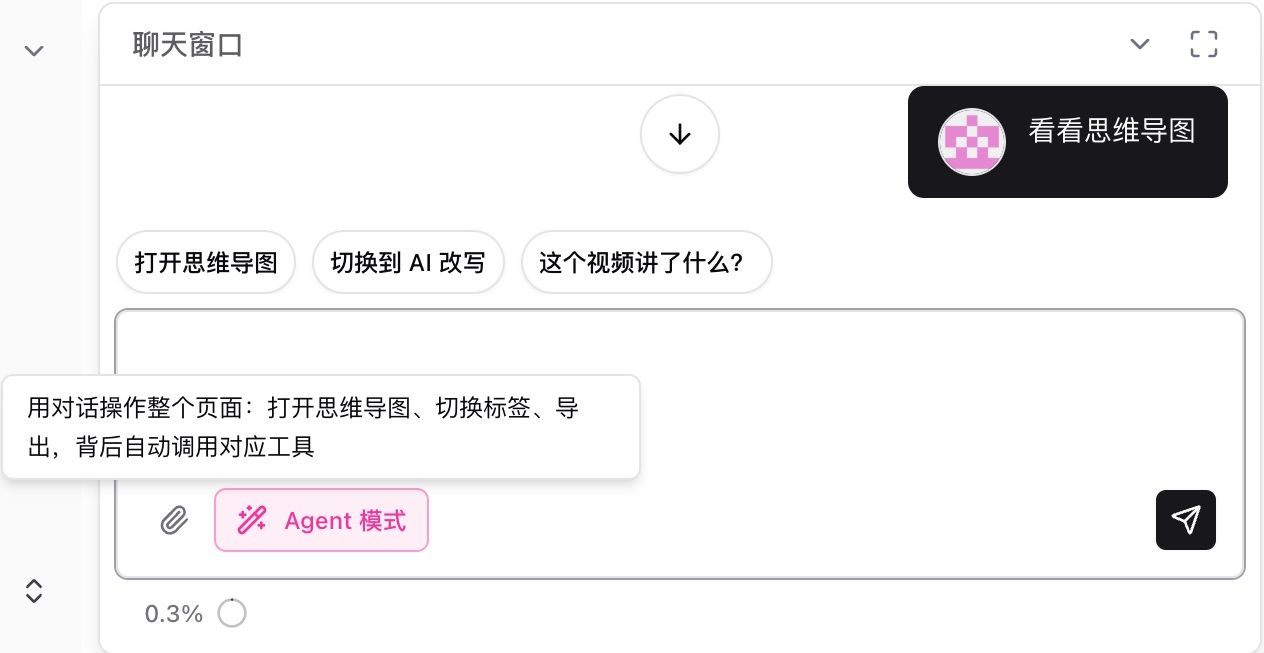
Screenshot: BibiGPT · AI Chat Agent Mode
So when it comes to “installing a skill for dsh,” the first one worth installing is the ability to watch video. The interactive demo below is the end result we’re giving dsh — pick a video, and get back a structured summary with timestamps:
Summarize any video in seconds
Pick a sample below to see the AI summary — TL;DR, key points, and jump-to timestamps.
TL;DR: Karpathy builds a GPT-style language model from scratch in code, explaining every piece — from a tiny character-level model up to the full Transformer.
Key points
- Start with a bigram model, then add self-attention so tokens can "talk" to each other
- A Transformer block = multi-head attention + feed-forward + residual connections + layer norm
- Training is just predicting the next token; scale and data do the rest
- The same architecture behind nanoGPT is what scales up to ChatGPT
Jump to
- 00:07 Why build GPT from scratch
- 08:23 Self-attention, intuitively
- 1:00:00 Assembling the Transformer block
- 1:35:00 From nanoGPT to ChatGPT
What is dsh’s skill format
A dsh skill is simply a Markdown file with YAML frontmatter, its directory name in kebab-case, and frontmatter that must include at least name and description. This is the exact same contract as the Agent Skills spec Anthropic defined for Claude Code — which means skills are reusable across agents without any rewriting for dsh.
Two organization forms are valid:
skills/
  bibi/
    SKILL.md          ← directory package: main file + optional references/, scripts/
  quick-note.md       ← flat file: single-file skill
Per the official skills subsystem docs, recursive discovery is not supported: dsh only recognizes direct subdirectories and flat files under a discovery root — bury a skill in a second-level subdirectory and it won’t be found. That’s the first detail people tend to miss.
What actually decides “where to install it” is dsh’s six-tier discovery order, scanned by numeric rank with lower winning. For the job in this post — installing a skill you already have — only two of those six tiers matter:
| Priority | Path | Reach for it when |
|---|---|---|
| 200 | <project>/.agents/skills | the skill belongs to one repo and should travel with it |
| 500 | ~/.agents/skills | the skill is yours everywhere — and Claude Code reads this same root |
The other four tiers cover dsh-specific overrides and packaging rather than everyday installs.
Here, “project” means the nearest ancestor directory that contains a .git folder; if none is found, it falls back to the current working directory. So a same-named skill inside a project overriding the global one is exactly what you’d expect.
Below is what our skill’s repository looks like on GitHub, so you can see what a directory package looks like in practice:
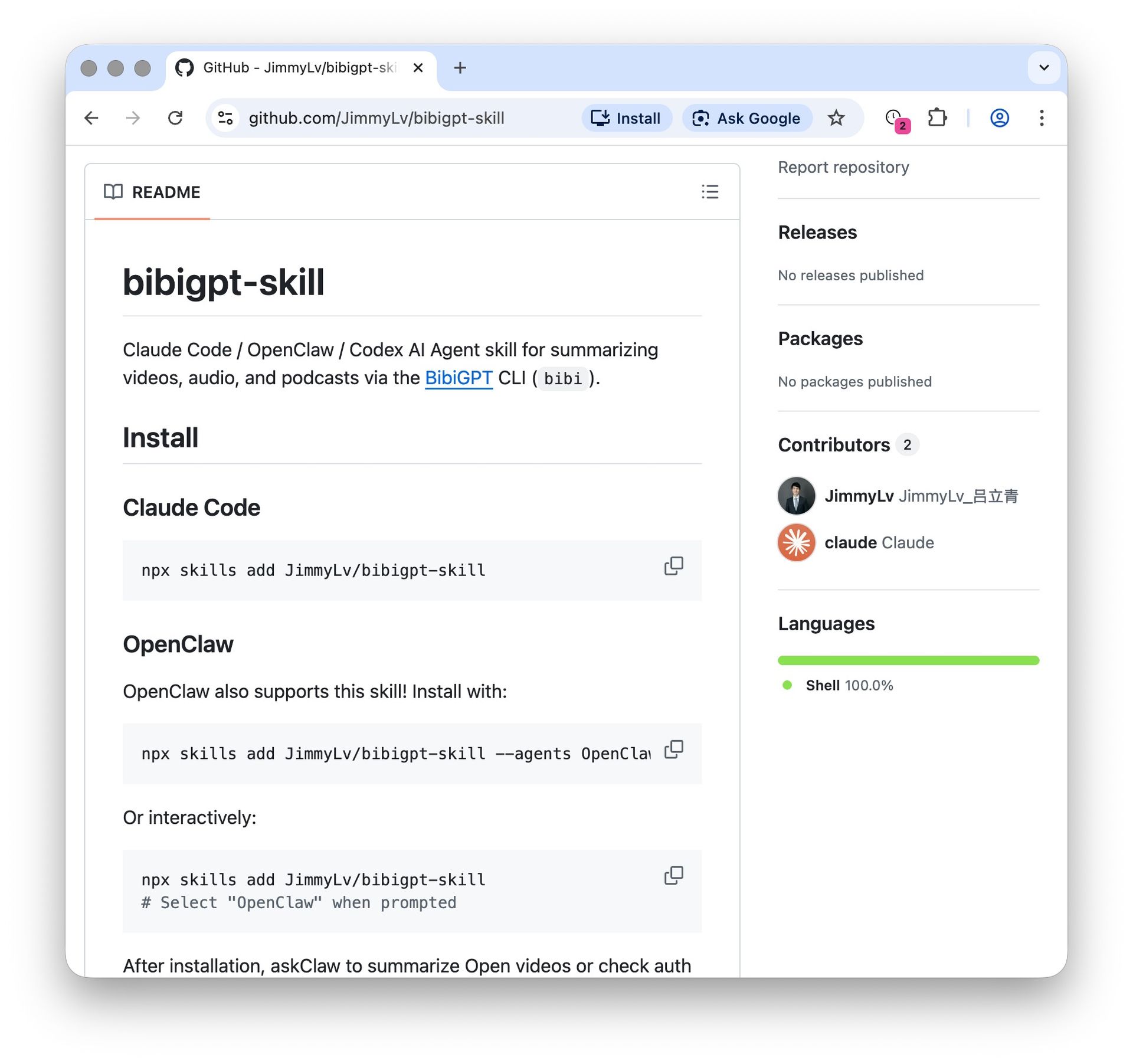
Screenshot: BibiGPT · Install page of the open-source Agent skill repository
Practical rule: Take a skill you wrote for Claude Code, drop it into dsh as-is, and try it before you consider changing anything — odds are you won’t need to.
How to make dsh use a skill you already have
The fastest path is the tier-500 discovery root: drop the skill directory into ~/.agents/skills/, and dsh will scan it automatically at startup — no configuration needed. dsh didn’t invent this directory; Claude Code and other agents have been using it for a while — so install it once, and both agents can see it.
Using our open-source audio/video skill as an example, the way that actually works today is to clone the repo and copy the skill directory over:
git clone https://github.com/JimmyLv/bibigpt-skill.git
mkdir -p ~/.agents/skills
cp -r bibigpt-skill/skills/bibi ~/.agents/skills/
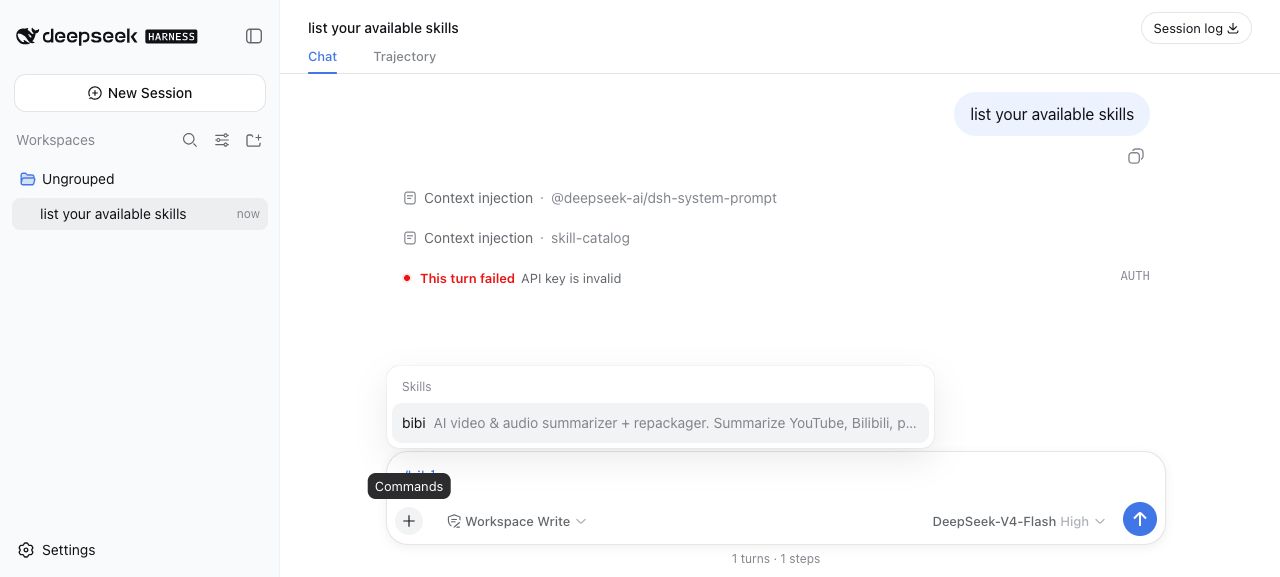
Then restart dsh, type / in the command palette, and the skill shows up under the Skills group. The screenshot below is from an actual test run — bibi is already in the list, with its description rendered in full:
Screenshot: dsh 0.1.0-rc.6 web interface. The API key is invalid line in the screenshot is the expected result of using a placeholder key for isolated verification, not an install failure — skill recognition and model invocation are two separate things.
In the same session you can also spot a trace of Context injection · skill-catalog, which shows the skill directory was actually injected into the model’s context — not just listed by name in the UI. That’s the most reliable signal for judging whether the install actually worked.
Want it scoped to a single project? Put the same directory under that project’s .agents/skills/ (tier 200) — higher priority, and it won’t pollute the global setup.
How to turn a skill into a dsh plugin
Copying the directory works, but updating is painful: when the skill gets upgraded, you have to remember to copy it over again. A plugin compresses install and update into a single command — that’s its entire reason for existing.
At its core, a dsh plugin declares a patch file in package.json:
{
  "dsh": {
    "bundle": { "patch": "./cordis.patch.yml" }
  }
}
cordis.patch.yml contributes one line of config to the profile, which collapses installation on the user’s side into a single command. Using our audio/video skill as the example, this one runs today:
dsh plugin --profile web add "github:JimmyLv/bibigpt-skill#path:/dsh-plugin"Don’t drop the quotes — in a shell, # starts a comment, and without quoting the second half of the argument gets swallowed.
There’s a knowledge point buried in that command worth remembering on its own: dsh plugin simply forwards its arguments to pnpm, and pnpm natively supports installing a package straight from a subdirectory of a git repository. Which means building a dsh plugin doesn’t require publishing to npm at all — push the source to GitHub and anyone can install it with one command, updates included.
At runtime, a plugin registers its skill via ctx.skills.register(), rather than modifying the filesystem skill provider’s customSkillDirs. The reason is very practical: dsh’s patch lines replace the config wholesale, with no deep merge — if you touch someone else’s line, you have to restate every one of its keys, and you’ll collide with any other package trying to modify that same line.
SkillRegistration has an optional resourceBase field, which supports three forms: directory / url / opaque. If your skill isn’t a single file but a directory package with references/ and scripts/, you must declare it, or every relative path reference in the skill body will break. The already-published official PicGo dsh plugin is a single SKILL.md, so it never hits this issue — copying its implementation as a template will trip you up.
For the rest of the contract — the full SkillRegistration field list, all six discovery roots with their exact priority ranks, and why the official showcase of skills-compatible tools still doesn’t list dsh — see the official skills subsystem docs.
The plugin ecosystem is taking off fast: as of August 14, 2026, GitHub repos tagged dsh-plugin already number more than 1,200 and are still climbing fast, and you can browse them directly on GitHub’s dsh-plugin topic page.
If you’d rather understand the framework’s plugin philosophy before diving in, the video below explains “everything is a plugin” pretty clearly:
Video source: YouTube · DevsKingdom · Deepseek Harness: Everything is a plugin (12 minutes)
At this point both routes actually work today: the plugin command above (one command, and it stays updatable), or the directory copy from the previous section (zero dependencies, and Claude Code and dsh share the same copy). The next section helps you pick.
Copy or plugin: how to choose
In one line: copy the directory if it’s just for you, build a plugin if you’re distributing it to others. Broken out into four comparable dimensions:
| Dimension | Copy into ~/.agents/skills | Build a dsh plugin |
|---|---|---|
| Who it fits | Personal / single-machine use only | Distributing to others, one-command install |
| Install cost | One cp | Requires writing package.json + a patch file |
| Update method | Copy again manually | Unified upgrade via the package manager |
| Cross-agent reuse | Yes — Claude Code sees it too | No — serves dsh only |
The third row is the real dividing line. A skill that evolves alongside product capability, changing three times a month, won’t stay maintainable through manual copying for long; while a stable, unchanging private skill turned into a plugin is over-engineering.
The fourth row is worth calling out on its own too: ~/.agents/skills is a shared directory across agents, while plugin registration only applies to dsh. If you’re running two agents side by side, the directory approach delivers far better value.
Decision filter: Only you will use it → copy the directory; you’re giving it to others, and it will keep getting updated → build a plugin.
Two gotchas to know before you start
Both of these gotchas are confirmed on 0.1.0-rc.6, and both will make you misdiagnose the situation as “the install failed.”
Gotcha one: missing DEEPSEEK_API_KEY and you can’t even get in. dsh hard-requires this environment variable at startup — miss it, and it exits with MISSING_CREDENTIAL before the interface even opens, so you never get the chance to see whether the skill installed. It only checks for presence, so a placeholder value is enough to pass the startup check when doing an isolated verification: model calls will fail, but the session and workspace records still get created as normal, and the command palette is usable — enough to confirm whether the skill was recognized.
Gotcha two: the web interface’s workspace selector can be unclickable. This is a known rough edge in the rc build. The workaround is to run headless mode once in the target directory first, so a session record gets created:
dsh --profile headless "list the files in the current directory"Once that’s done, go back to the web interface and the workspace will be in the sidebar. It doesn’t matter that the run reported an auth failure because of the placeholder key — the record is already saved to disk.
One more tip: dsh doesn’t print plugin logs to standard output — you won’t see ctx.logger.info output, so don’t rely on logs to confirm registration succeeded. To verify, check the Skills group in the command palette and look for Context injection · skill-catalog in the session.
One note on versioning: every hands-on test in this article ran on 0.1.0-rc.6, still a developer preview as of August 14, 2026. The dsh CLI package directory moves with each release, so check the current number before you start. The APIs above (especially newer fields like resourceBase) may change in the stable release, so if you’re building a plugin, pin the version.
Below is the help screen for the CLI tool behind the skill, so you can get a sense of what arguments it accepts:
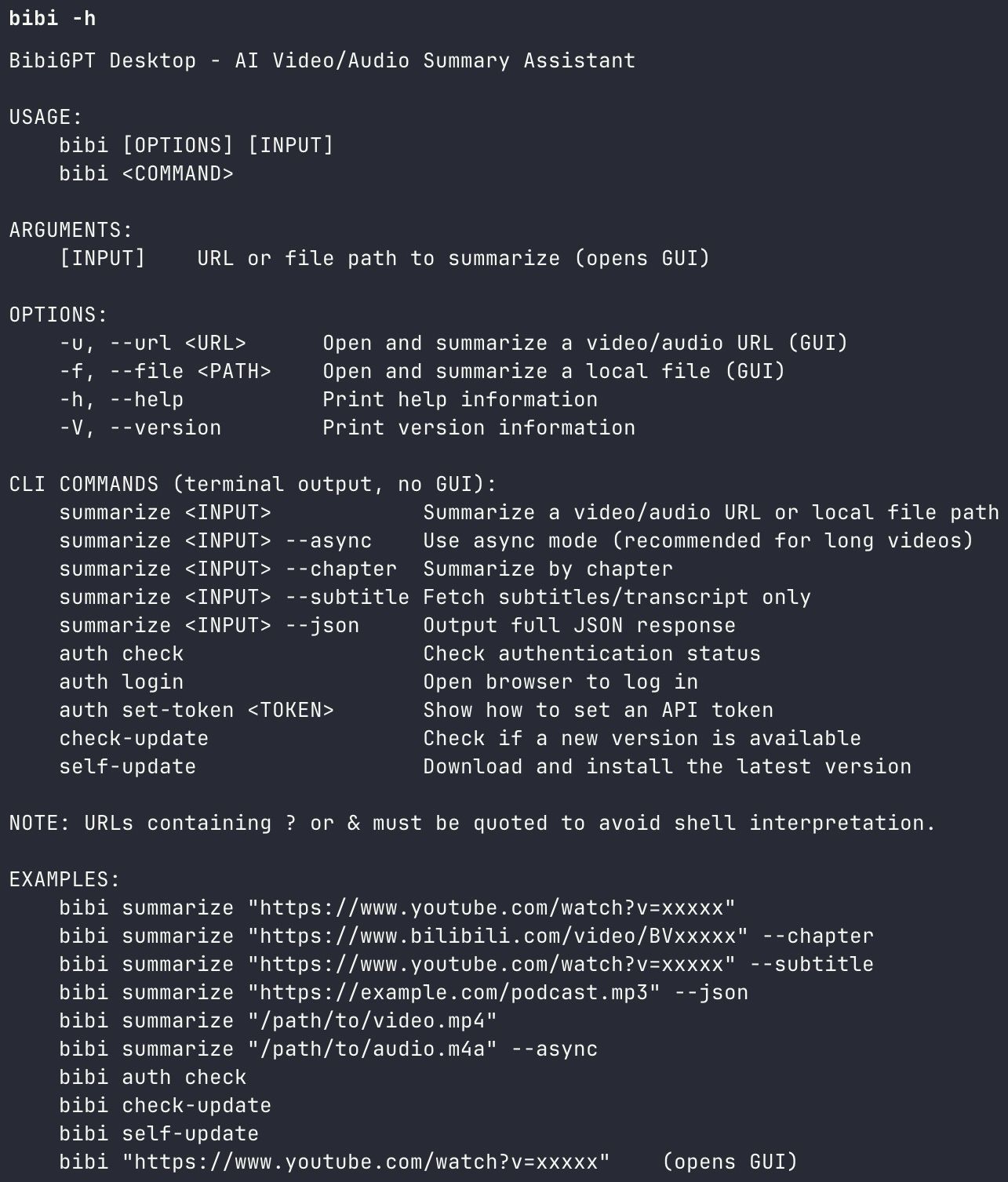
Screenshot: BibiGPT · CLI tool’s help output
Practical rule: With an rc build, test with an isolated
DSH_HOMEfirst — don’t use your home directory as the experiment ground. That way your home directory stays clean, and your verification conclusions actually hold.
After installing, how to make dsh actually understand a video
The skill showing up in the palette is only step one; the real acceptance test is: throw in a link and get back usable, structured notes. The full loop is five steps:
- Give the skill a way to call BibiGPT: on macOS/Windows, install the BibiGPT desktop app (it ships the CLI the skill depends on); on Linux or a server, create an API token and export it as
BIBI_API_TOKEN - Install the skill into dsh via either path described above
- Restart dsh and confirm it shows up in the Skills group of the command palette
- Just say it in plain language: “summarize this video” with the link attached
- Get back a timestamped, segmented summary, and click any timestamp to jump back to the original video and verify it
This same skill serves Claude Code, OpenClaw, and other agents with an identical skill body — that’s exactly why we’ve stuck with the standard SKILL.md format. To see its full usage on other agents, read the complete guide to giving an AI agent audio/video summarization; to understand the broader idea of “feeding audio and video into an agent,” the workflow for feeding audio/video to AI agents covers it more systematically; and if you’re not yet familiar with AI video summarization itself, the complete guide to AI video summarization is a better starting point.
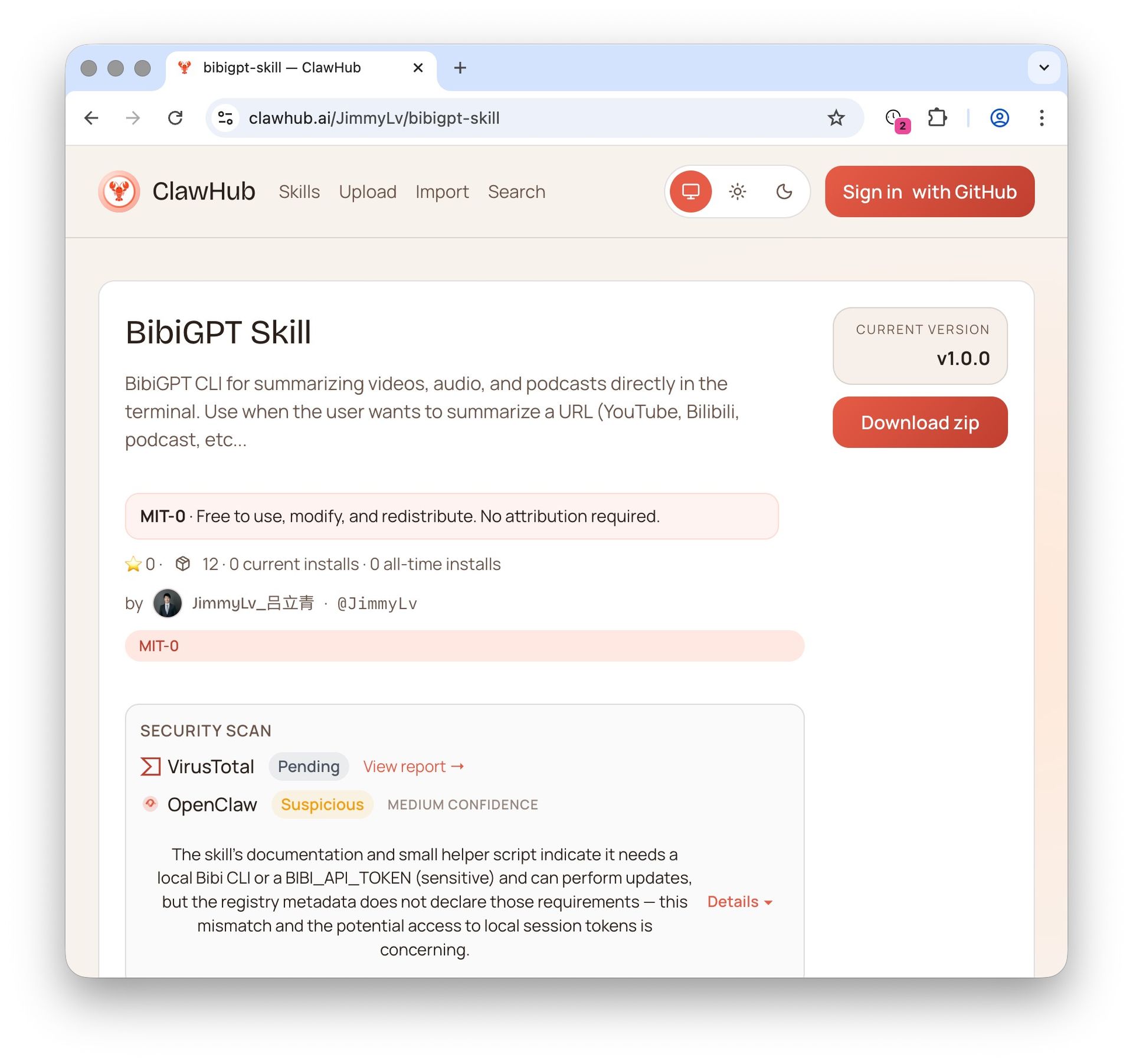
Screenshot: BibiGPT · Agent skill page on the skill marketplace
A framework’s value isn’t in the framework itself — it’s in what you install into it. dsh has lowered the bar for “what to install” down to a single Markdown file. What’s genuinely scarce are the skills that turn things an agent can’t read into things it can.
Fill in the audio/video piece for your dsh — or skip the install and try it in the browser:
- ▶️ Summarize in the browser (no dsh needed): Paste a Bilibili or YouTube link
- 🌐 Desktop download: https://bibigpt.co/en/desktop
- 🔑 Get your API token (Linux / servers): Sign in and create a token, then
export BIBI_API_TOKEN=... - 🧩 Skill source code: https://github.com/JimmyLv/bibigpt-skill
- 🎬 See it in action: AI summary for Bilibili videos
FAQ: dsh and skill installation
Q1: Can a skill written for Claude Code really be used directly in dsh?
A: Yes. Both sides use the same <skill-name>/SKILL.md + YAML frontmatter contract, with frontmatter required to include at least name and description. Put the skill directory into ~/.agents/skills/, and both agents read the same file. Only the rare skill that relies on one side’s exclusive capability (like a specific tool-calling convention) would need changes.
Q2: Which directory should a skill be installed in?
A: For personal use, put it in ~/.agents/skills/ (tier 500), which works across agents; to scope it to one project, put it in that project’s .agents/skills/ (tier 200), which has higher priority. Note that “project” means the nearest ancestor directory containing .git, not just any folder you happen to cd into.
Q3: dsh won’t start and reports MISSING_CREDENTIAL — what’s going on?
A: dsh hard-requires the DEEPSEEK_API_KEY environment variable at startup — miss it and it exits immediately, before you can even reach the interface. Set a real key for normal use; if you only want to verify whether a skill was recognized, a placeholder value passes the startup check too — model calls will fail, but the command palette remains usable.
Q4: What if you can’t select a workspace in the web interface?
A: This is a known rough edge in 0.1.0-rc.6. Run headless mode (dsh --profile headless, with any task) once in the target directory first; once the session record is created, go back to the web interface and the workspace will show up in the sidebar.
Q5: When should you build a plugin instead of copying the directory?
A: The criteria are “will it keep getting updated” and “will you give it to others.” Build a plugin if the skill will keep evolving or you want others to install it with one command; for a stable skill you only use locally, copying the directory is simpler — and it lets Claude Code see it too, as a bonus.
Q6: Can I summarize a video without installing dsh?
A: Yes. BibiGPT runs in the browser: paste a Bilibili, YouTube, or podcast link and you get a timestamped summary without installing DeepSeek Harness. Install the skill into dsh only when you want the same capability inside the agent command palette.
BibiGPT Team
Popular tools
More in this series
- AI Competitive Intelligence Workflow: Build Industry Monitoring with BibiGPT Video Summaries
- Lessons From Shipping BiliGPT: Two Cold-Start Growth Tactics Behind a GPT-3 Side Project
- [BibiGPT Growth Series] Episode 1 | How AI Summaries for Bilibili Were Born
- BibiGPT Advanced Guide 2026: Download + AI-Summarize Videos from WeChat Channels, RedNote, TikTok, and Enterprise Intranet Sites
- Chat with Any Video: How to Ask AI Questions About Videos Instead of Watching the Whole Thing (2026)