YouTube to Text: The Complete Guide (2026) — Turn Any Video into Searchable, Editable Transcripts
YouTube to Text: The Complete Guide (2026) — Turn Any Video into Searchable, Editable Transcripts
You’ve found the perfect YouTube video — a two-hour lecture, an interview, a tutorial. But you don’t want to watch the whole thing. You want the text: something you can Ctrl+F to find keywords, copy into notes, or paste into a document to rewrite in your own words. And then you stare at the progress bar and realize transcribing it word for word would eat up your entire afternoon.
Converting video to text looks like a simple technical task on the surface. In reality, it’s a choice: do you want a “verbatim transcript,” or do you want “usable content”? Most people start by searching for “free transcription tools” — and end up with a blob of unpunctuated, unformatted text full of wrong names, which is harder to use than nothing at all.
This guide isn’t a tool roundup. We’ll break down “YouTube to text” into the real scenarios you’ll actually face — video with built-in captions vs. without, short vs. long, single video vs. batch, with or without multilingual needs — and show you the most efficient path for each, plus how to go from “raw text” to “a transcript you can actually use.”
Quick answer (100 words): There are three ways to convert a YouTube video to text — ① If the video has captions, extracting them directly is fastest; ② If there are no captions, use AI speech-to-text to convert audio to text; ③ If you want “usable content” rather than just a verbatim transcript, use AI to transcribe and generate a structured summary at the same time. For an all-in-one solution, paste the YouTube link into BibiGPT and get captions plus a summary in seconds.
Table of Contents
- Why convert YouTube to text
- Method A: Extract built-in captions (fastest)
- Method B: AI speech-to-text (works without captions)
- How to choose: free methods vs. tools compared
- Advanced: long videos, multilingual, batch, and accuracy
- From text to usable content: a practical workflow
- Frequently asked questions (FAQ)
Rather than just reading the steps, see the complete “video → searchable, editable transcript” workflow in action — try it with one of the sample videos below:
Summarize any video in seconds
Pick a sample below to see the AI summary — TL;DR, key points, and jump-to timestamps.
TL;DR: Karpathy builds a GPT-style language model from scratch in code, explaining every piece — from a tiny character-level model up to the full Transformer.
Key points
- Start with a bigram model, then add self-attention so tokens can "talk" to each other
- A Transformer block = multi-head attention + feed-forward + residual connections + layer norm
- Training is just predicting the next token; scale and data do the rest
- The same architecture behind nanoGPT is what scales up to ChatGPT
Jump to
- 00:07 Why build GPT from scratch
- 08:23 Self-attention, intuitively
- 1:00:00 Assembling the Transformer block
- 1:35:00 From nanoGPT to ChatGPT
Why Convert YouTube to Text: It’s More Valuable Than You Think
Most people assume converting to text is just for “not wanting to watch the video.” But a text version unlocks far more use cases than that.
- Searchable. Want to find where a key point appears in a video? Search the transcript instantly instead of scrubbing back and forth through the timeline.
- Editable and reusable. Rewriting an interview into an article, turning a lecture into notes, distilling a tutorial into a step-by-step checklist — all of this requires text first.
- Accessible. Transcripts are the foundation for captions, SEO, and accessibility. According to research cited by 3Play Media from Verizon Media and Publicis Media, roughly 80% of people are more likely to finish a video when captions are available — text helps your content reach more people.
The reason “converting to text” so often goes wrong is that most people stop at step one: getting a blob of raw text and calling it done. Between a raw transcript and a usable document, there’s a gap filled by punctuation, paragraph breaks, name corrections, and terminology fixes. Later in this guide, we’ll show you how to automate those steps too.
The screenshot below shows what a video looks like after it’s been converted into segmented, navigable text — this is the starting point for “actually usable”:
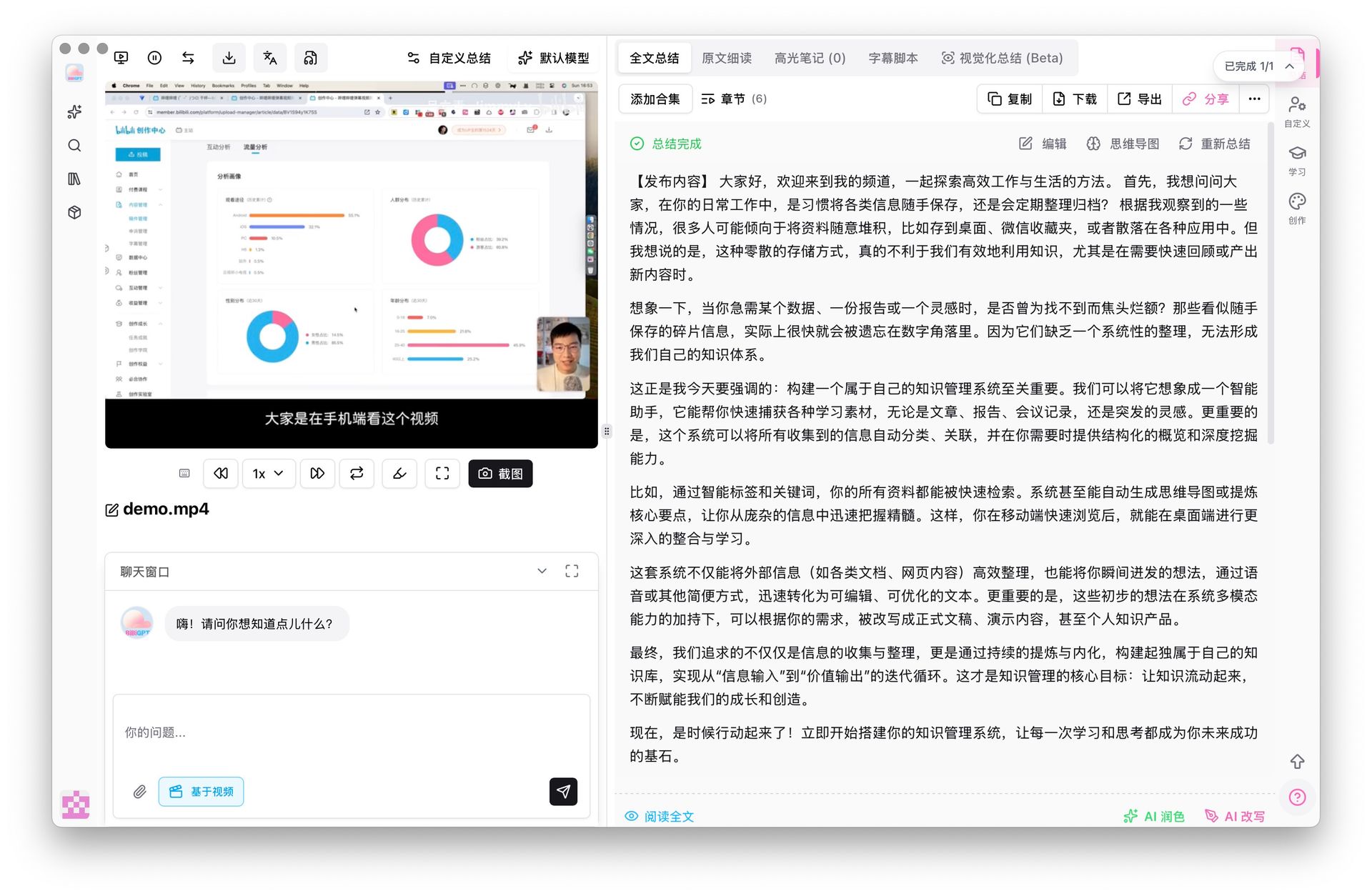
Screenshot: BibiGPT · video-to-text result view
Practical rule: Before you start transcribing, ask yourself — do you want a “verbatim transcript” or “usable content”? Any transcription tool will do for the former. For the latter, you need a tool that can also segment, correct errors, and extract key points — otherwise the time you saved transcribing will be spent entirely on cleanup.
Method A: Extract Built-In Captions (Fastest and Free)
A large portion of YouTube videos — especially those from established channels — already have captions, either uploaded by the creator or auto-generated by YouTube. According to YouTube’s official documentation on captions, creators can upload subtitles or let the platform generate them automatically, so most serious videos you’ll come across have a caption track. When captions exist, extracting them is always faster and more accurate than re-transcribing — because you skip the “audio → text” step where errors can creep in.
When to use this method:
- The video has a “CC” caption button in the lower right (meaning there’s a caption track)
- You need the text content itself and don’t have extreme timestamp precision requirements
- You want zero cost and the fastest possible turnaround
How to do it (general steps):
- Open the YouTube video you want to convert, and confirm it has captions (the CC button is active).
- Use a tool that supports “extracting YouTube captions” and paste the video URL.
- Select the caption language (many videos have multi-language caption tracks).
- Receive the plain text transcript or a caption file with timestamps.
If you do this regularly, using a dedicated YouTube subtitle downloader saves far more time than doing it manually each time — just paste the link to get captions with language and format options. You can also use a YouTube transcript generator to get a clean plain-text version in one step.
Practical rule: Always check whether a video has built-in captions first. If it does, extract them directly — don’t waste compute power re-transcribing. It’s the fastest and most accurate path.
If you’re not sure exactly how this works, the video below — recorded by a well-known creator — walks through the complete process of getting a transcript from a YouTube video. Follow along and you’ll have it figured out in minutes:
Video source: YouTube · Kevin Stratvert · How to Get Transcript from YouTube Video
Method B: AI Speech-to-Text (Works Even Without Captions)
If the video has no captions — which is common for personal vlogs, livestream replays, and niche content — you’ll need AI speech-to-text to convert the audio directly into text.
When to use this method:
- The video has no CC captions
- Auto-generated captions are too poor in quality (heavy accent, lots of jargon, background noise)
- You need to know what was actually said in the audio, not just what a caption track says
The biggest variable here is accuracy. Transcription quality depends on audio clarity, accent, technical terminology, and background noise. The good news is that speech recognition in 2026 has improved dramatically on “difficult content” — accented speech, noisy environments, even content with background music can mostly be transcribed to a usable level.
The screenshot below shows the transcription engine selection interface — choosing the right transcription method for different types of content is the key step for ensuring accuracy:
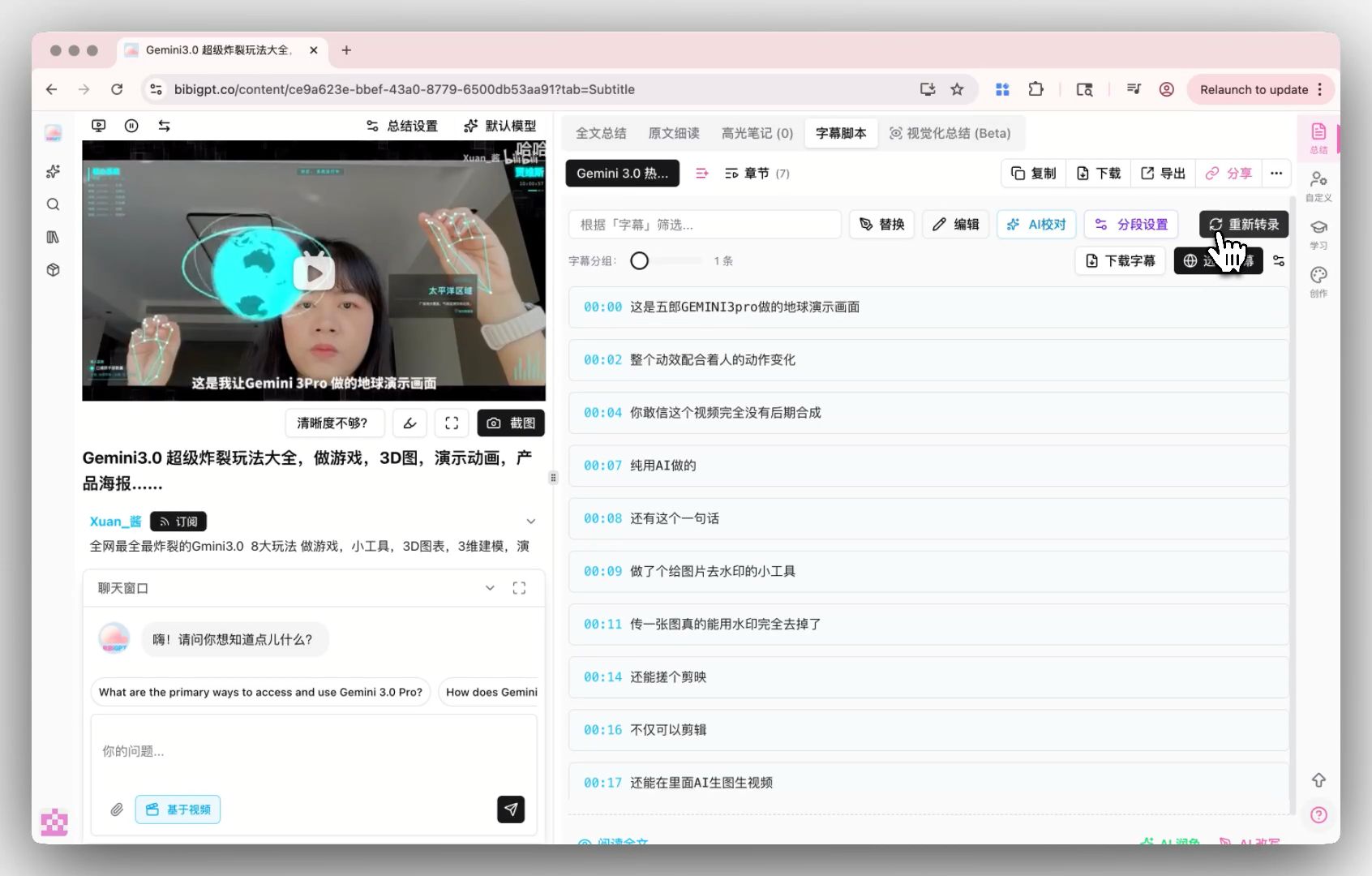
Screenshot: BibiGPT · transcription engine switcher
BibiGPT offers free online speech-to-text that handles heavily accented and highly technical content as accurately as possible, maximizing quality from the source. For local files (downloaded videos, recordings), it also supports local file speech-to-text — no need to upload to a third-party platform first.
Practical rule: When there are no captions, accuracy is everything. Prioritize tools that let you switch transcription engines and are more robust against accents and noise — one accurate transcript is worth more than three transcripts you’ll spend an afternoon correcting.
How to Choose: Free Methods vs. Tools Comparison Table
By now you probably sense that there’s no “single best method” — only the method that best fits your specific situation. Here’s a side-by-side comparison:
| Method | Best for | Accuracy | Ease of use | Extra capabilities |
|---|---|---|---|---|
| Extract built-in captions | Video has CC, need text fast | Depends on original captions | High | Choose from multiple language tracks |
| Manual + free transcription | Occasional use, zero budget | Medium (requires proofreading) | Medium | Minimal |
| AI speech-to-text tool | No captions, need accuracy | High | High | Engine switching, noise robustness |
| AI transcription + summary | Want “usable content” | High | High | Segmentation, summary, translation, follow-up Q&A |
Choosing really comes down to one question: where’s your bottleneck? If it’s “getting a transcript at all,” the first two rows are enough. If it’s “getting an accurate transcript,” choose AI speech-to-text. If it’s “getting content you can immediately use,” go with the last row — a tool that structures your content as it transcribes.
Decision filter: First think about what you’ll do with the text next. If it’s just for archiving, a free method is fine. If you need to search, rewrite, translate, or extract key points, start with a tool that can do it all in one place — don’t make yourself juggle between multiple tools.
Advanced: Long Videos, Multilingual, Batch, and Accuracy
Real-world needs are often more complex than “convert one short video.” Here are some common advanced scenarios:
Long videos (1–3 hours). Lectures, podcasts, and livestream replays are the hardest to handle — verbatim transcripts can run tens of thousands of words, and nobody reads them start to finish. What you need isn’t just a transcript, but a structured summary with timestamps — scan the outline first, then jump to the sections you care about. BibiGPT’s free video summarizer automatically distills long videos into key points; hours of content becomes scannable in minutes. For meeting recordings, you can even convert them directly into meeting notes documents.
Multilingual. When watching a foreign-language video, you often want both the original text and a translation. Extracting the original text and then using a free online subtitle translator for side-by-side line comparisons is the most efficient approach for language learning or cross-language content research.
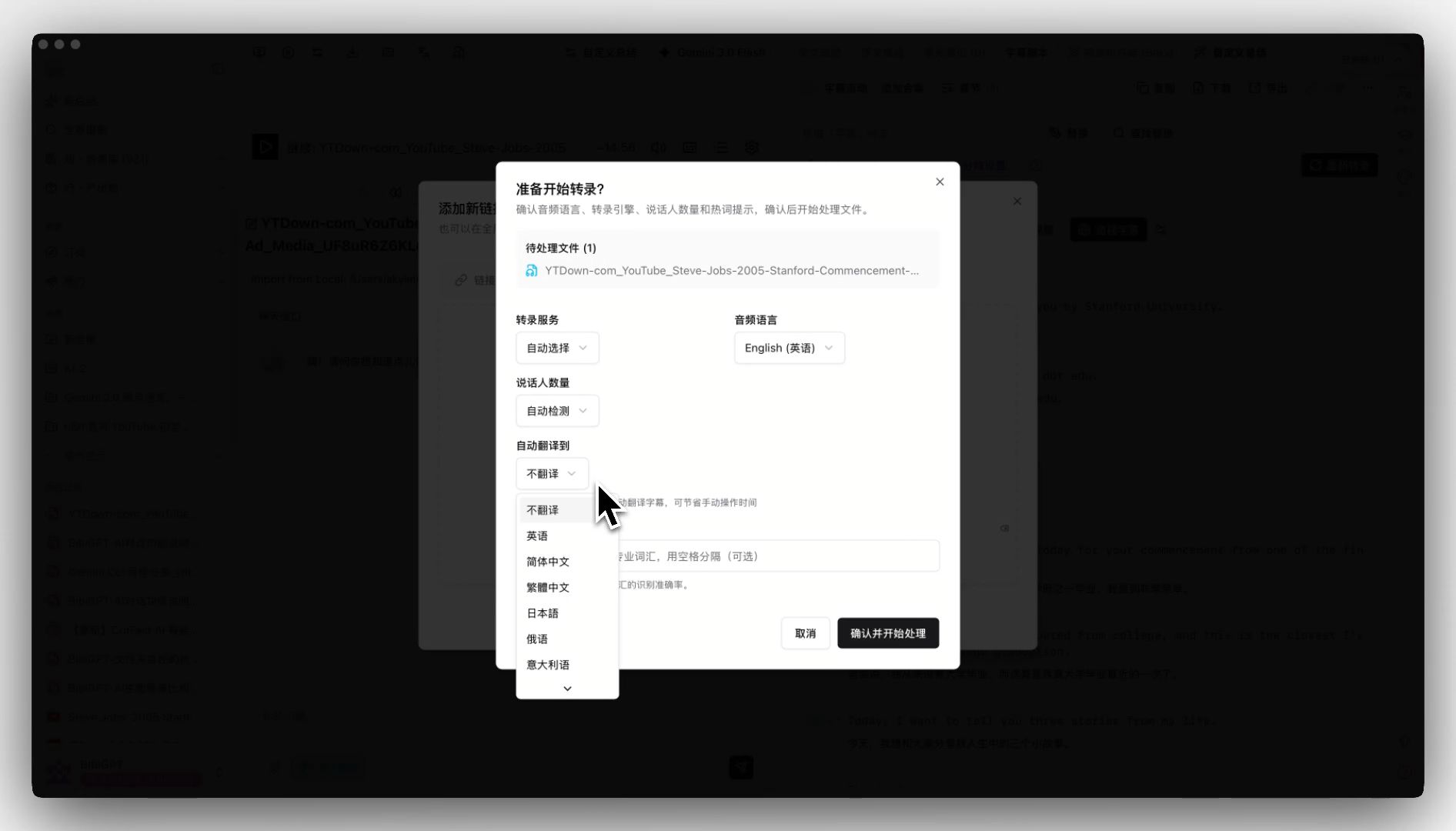
Screenshot: BibiGPT · subtitle translation comparison view
The interactive demo below lets you see “original / translation side by side + timestamps” in action — so you can follow along with foreign-language videos:
Translate captions into your language
Original and translation, line by line, with timestamps. Great for foreign-language talks.
| 00:07 | We're going to build GPT from scratch, together. | Vamos a construir GPT desde cero, juntos. |
| 08:23 | Self-attention is the heart of the Transformer. | La autoatención es el corazón del Transformer. |
| 45:10 | Each token emits a query and a key. | Cada token emite una consulta y una clave. |
| 1:35:00 | At its core, this is the same model behind ChatGPT. | En esencia, es el mismo modelo detrás de ChatGPT. |
Batch processing. If you need to transcribe an entire playlist or dozens of videos from a channel, doing them one by one is exhausting. Converting each one into a searchable text transcript and then organizing them together is the right approach for researchers and creators who need to systematically process large volumes of content.
How to push accuracy even higher. Beyond choosing the right transcription engine, there are two practical tricks: first, prioritize sources with good audio quality (clear speech beats a noisy room every time); second, run the transcript through AI once it’s done to fix punctuation and paragraph breaks — this step alone often takes output from “barely readable” to “ready to use.” YouTube’s auto-captions vary a lot in accuracy depending on accent, speaking pace, and background noise, so whether they’re “good enough” depends on the specific video. And a high-quality text transcript isn’t just easier to read — according to 3Play Media’s analysis, it also significantly improves content discoverability and reach, so when it matters, transcription is worth it.
Practical rule: Don’t try to read a long video’s verbatim transcript from start to finish. Use a structured summary with timestamps for triage first, then use search to navigate to the sections you care about — this is an order of magnitude faster than reading through from the beginning.
From Text to Usable Content: A Practical Workflow
Here’s a real, end-to-end workflow that pulls everything together — done in 5 steps:
- Paste the YouTube link. No need to download the video first — just paste the URL.
- Get captions + a structured summary in seconds. Captions are extracted if available; AI transcribes if not. Either way, you also get a TL;DR and segmented key points.
- Search and navigate. Use keywords to find the exact section you care about in the transcript, then click a timestamp to jump to that moment in the original video.
- Ask follow-up questions. No need to read everything — just ask “what’s the core conclusion?” or “which minute has the key data?” and get an answer with source references.
- Export and reuse. Export the transcript and key points, add them to your note-taking system, or rewrite them into articles, scripts, or checklists.
The screenshot below shows what it looks like to turn video content directly into reusable text output — text isn’t just text, it becomes exactly the finished product you need:
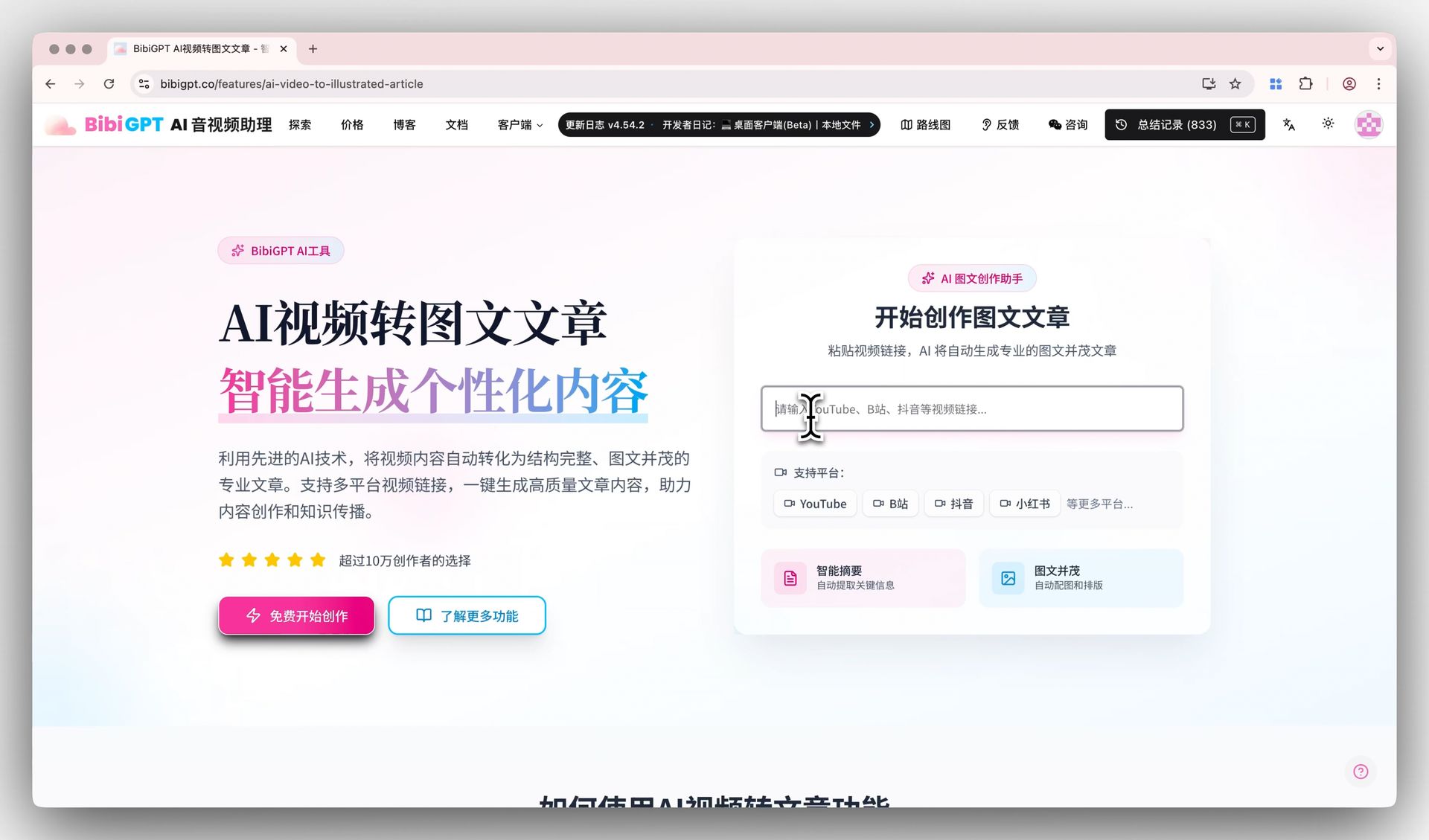
Screenshot: BibiGPT · video-to-article output demo
The biggest difference between this workflow and the patchwork approach of “Tool A for transcription, Tool B for summarizing, Tool C for translation” is simple: everything in one place, and you stay in control. The truly smart approach isn’t reading every video from start to finish — it’s converting to text first for triage, then deciding which ones deserve your full attention. BibiGPT supports 30+ platforms, has served over 1 million users, and has generated more than 5 million AI summaries — “turning video into usable text” is something it’s been proven to do, repeatedly.
Frequently Asked Questions (FAQ)
Q1: Is converting YouTube videos to text free? When a video has built-in captions, extracting them is essentially free and is also the fastest path. When you need AI speech-to-text for videos without captions, free tools typically have time limits or quality restrictions. For long videos, high accuracy, or batch processing, a professional tool will save you more time and headaches.
Q2: How accurate is the converted text? Accuracy mainly depends on audio clarity, accent, and background noise. Videos with official captions are most accurate. For AI transcription, choosing a tool that lets you switch transcription engines and handles accents and noise better will noticeably improve quality.
Q3: Can very long videos (one to two hours) be converted? Yes. But don’t just go for a verbatim transcript — long videos are much better served by a structured summary with timestamps. Scan the outline first, then jump to the sections you care about. BibiGPT’s chapter-by-chapter deep reading automatically breaks long videos into chapters, letting you get through tens of thousands of words in minutes.
Q4: Can foreign-language videos be transcribed and translated at the same time? Yes. You can get both the original-language text and a line-by-line translation side by side — the most efficient way to work with foreign-language videos or conduct cross-language research.
Q5: Can I convert an entire playlist at once? Yes. In addition to single links, BibiGPT supports transcribing and summarizing an entire playlist or a channel’s video list in bulk — ideal for anyone who needs to process large amounts of content systematically.
Q6: Can I try it without signing up? Yes. Paste a YouTube link into the home page input box to get partial results and experience the complete “video → readable text” workflow — then decide whether you want to continue.
Converting YouTube videos to text ultimately isn’t about “whose transcription engine is faster.” It’s about whether you can get from a single video to “searchable, editable, immediately usable content” in as few steps as possible. Free methods work for occasional use or archiving. But if you’re pulling content from videos every day, choosing a tool that handles transcription, summarization, translation, and follow-up Q&A all in one place will save you far more time than you’d expect over the long run.
If you want to turn any YouTube video into a clean, usable transcript, paste the link into BibiGPT and you can start right now — it supports 30+ platforms and delivers captions and an AI summary with a single paste.
BibiGPT Team
Popular tools
More in this series
- Best Free YouTube Transcript Tools in 2026: 7 Options Compared
- Best YouTube Subtitle Downloader & Extractor Tools 2026: Complete Comparison Guide
- Free YouTube Transcript Generator: Top 5 AI Tools Ranked (2026)
- How to Download YouTube Subtitles in 2026: 5 Methods Compared + BibiGPT One-Click Extraction (No Install)