Sync BibiGPT Summaries to 10+ Platforms: Email, Notion, Obsidian, Feishu & More

BibiGPT now pushes summaries straight into the tools you already use. This guide covers supported destinations, setup steps, and best practices so you can keep knowledge flowing without copy-paste.
Supported Destinations
- Email – receive clean Markdown summaries in your inbox.
- Notion – append highlights to databases or project pages.
- Flomo – capture sparks and micro-notes instantly.
- Feishu (Lark) – broadcast summaries to team chats.
- Readwise Reader – consolidate across articles, videos, and podcasts.
- Roam Research – backlink new ideas into your graph.
- Roam Quick Capture – send summaries while browsing.
- Tana – slot AI outputs into node-based workflows.
- Obsidian – archive Markdown files in your vault.
- Logseq – keep daily notes and journals in sync.
More integrations are coming—stay tuned.
Getting Started
- Open Settings → Account → Bindings inside BibiGPT.
- Paste the integration-specific token (Webhook, API key, page URL, etc.).
- Toggle one or both options:
- Show button – manually send selected summaries.
- Auto send – push every new summary automatically.
- Save. (This step is easy to forget!)
- Add your address, enable auto-send, and hit Save. Weekly digest? Meeting notes? They’ll arrive minutes after the summary finishes.
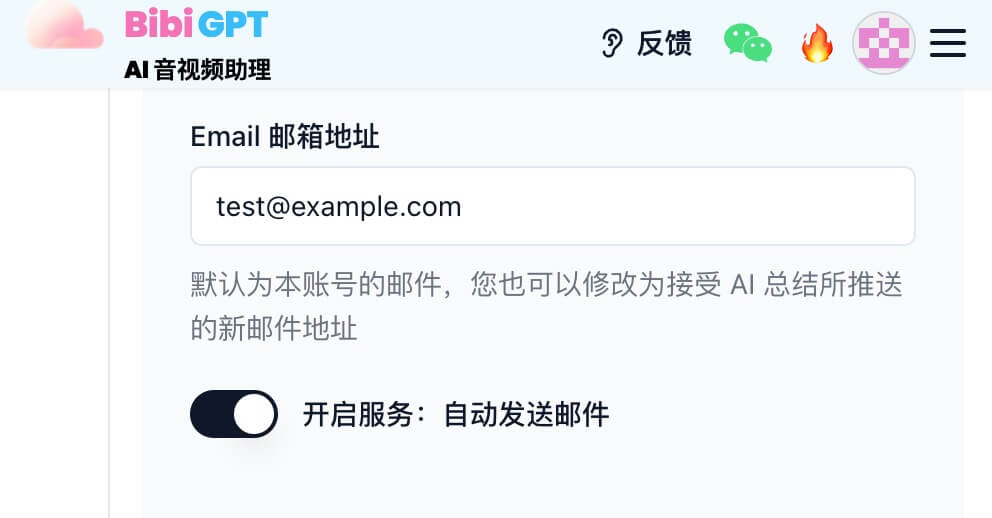
Enable auto-send in Settings → Bindings and every finished summary lands in your inbox.
Notion
- Generate a Notion internal integration token.
- Share the target page/database with that integration.
- Paste the token and choose whether to push to a specific database or append inline blocks.
- Save and test with Save to Notion.
Tip: Pair with our Notion + BibiGPT workflow guide for a full study stack.
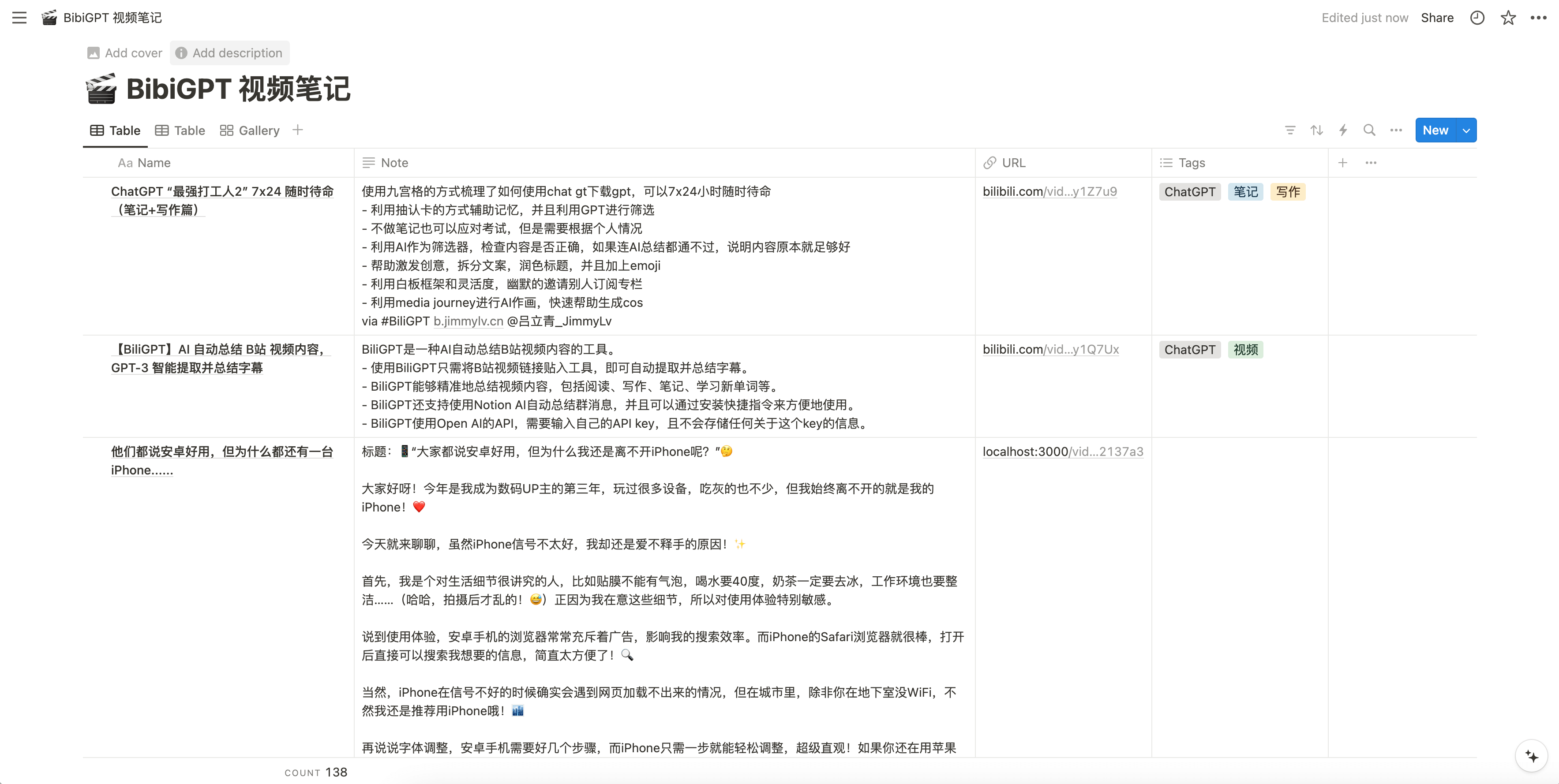
A BibiGPT summary appended straight into a Notion page.
Flomo
- Copy your webhook from Flomo’s Incoming Webhook page.
- Paste into the Flomo field, enable manual or auto send, save.
- Summaries pop up in your stream in seconds.
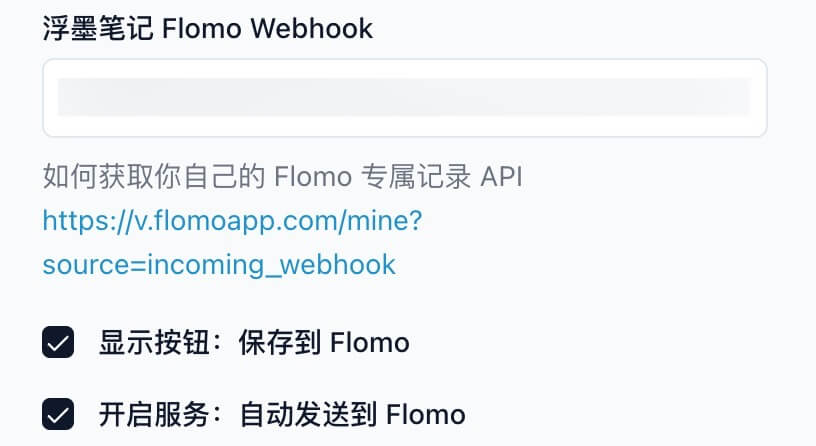
Paste your Flomo incoming webhook to mirror sparks into your stream.
Feishu / Lark
- Create a custom bot in the target group, grab the webhook URL, and drop it into BibiGPT.
- Choose manual vs. automatic sending.
- Great for surfacing meeting takeaways or daily learning logs.
Readwise Reader
- Paste your Reader API token.
- Decide whether to clip everything automatically or use the “Save to Readwise” button when a summary is noteworthy.
Tana
- Use a Tana Capture token or Tana Paste link.
- Perfect for building node templates around videos or podcasts you study.
Obsidian & Logseq
- Specify the vault/folder path for Obsidian or the journal structure for Logseq.
- BibiGPT writes Markdown files (with timestamps, headings, backlinks) exactly where you want them.
Roam Research & Quick Capture
- For standard Roam sync, paste your Graph API token.
- For quick capture, grab the browser extension URL and drop it into the dedicated field.
- Use auto send for daily notes, or the button for curated highlights.
Best Practices
- Name your summaries before syncing—they’ll appear as titles in your destination.
- Use tags inside BibiGPT to trigger filters or queries later.
- Start with manual send to test formatting, then flip on auto sync once you’re happy.
- Batch exports (Notion, Obsidian, Readwise) still work—syncing just makes it hands-free.
Why It Matters
With multi-platform sync, BibiGPT goes from “smart summary” to “connected knowledge engine.” Whether you’re studying, running meetings, or building a second brain, your highlights, outlines, mind maps, and transcripts stay in lockstep across tools.
Ready to automate your pipeline? Head to Settings → Bindings and connect your first destination today.
👉 Try BibiGPT free — summarize any video, then sync the result everywhere you work.
Popular tools
More in this series
- AI Competitive Intelligence Workflow: Build Industry Monitoring with BibiGPT Video Summaries
- Lessons From Shipping BiliGPT: Two Cold-Start Growth Tactics Behind a GPT-3 Side Project
- [BibiGPT Growth Series] Episode 1 | How AI Summaries for Bilibili Were Born
- BibiGPT Advanced Guide 2026: Download + AI-Summarize Videos from WeChat Channels, RedNote, TikTok, and Enterprise Intranet Sites
- Chat with Any Video: How to Ask AI Questions About Videos Instead of Watching the Whole Thing (2026)