Gemini 3.5 Transcribe: Video-to-Text Workflow (2026)

Gemini 3.5 Transcribe: Video-to-Text Workflow (2026)
You drop a two-hour interview on the timeline, hit play, and realize the part you actually need is a sentence you heard once, somewhere after the forty-minute mark. You do not want another live caption overlay. You want the talk as text: speaker labels, word-level times, a file you can search, quote, and export. That is the job Gemini 3.5 Transcribe was built for — speech-to-text, not a chat model that “kind of watches video.”
As of 2026-08-26, Google’s Gemini 3.5 Transcribe announcement positions it as the successor to Chirp 3: 85+ languages, speaker labels on recorded audio, word-level timestamps, and custom vocabulary. This post is the workflow layer: how you transcribe audio from a YouTube or TikTok URL into text you can reuse.
The gap is simple. A speech-to-text API transcribes a file you already have. A video-to-text workflow starts one step earlier — fetch the video, get a transcript, then decide what to do with it.
Table of Contents
- What is Gemini 3.5 Transcribe?
- Why doesn’t a better speech-to-text model finish a video-to-text job?
- How do you transcribe a YouTube or TikTok video to text?
- How do you use Gemini 3.5 Transcribe as a selectable engine?
- Should you use the API, live captions, or a video-to-text product?
- What should you do with the transcript once you have it?
- FAQ
What is Gemini 3.5 Transcribe?
Gemini 3.5 Transcribe is Google’s dedicated speech-to-text model, launched on 26 August 2026 as the replacement for Chirp 3. It is not Gemini Live Translate, and it is not a general video-understanding model. It converts speech into text, with automatic language detection across more than 85 languages, including mid-sentence code-switching.
Google reports two headline error rates, measured by Artificial Analysis and cited on the launch post: 4.0% word error rate (WER) for streaming and 2.6% WER for non-streaming. On the multilingual FLEURS benchmark, the same post cites 5.50% WER streaming and 5.04% WER non-streaming. Time to a finished transcript is described as about 70% faster than Chirp 3. MarkTechPost’s write-up of the same launch is useful because it separates the two endpoints’ feature sets instead of treating “Transcribe” as one SKU.
The product is two endpoints, and they do not share a feature set. That split is the part worth planning around:
| Feature | File / batch (gemini-3.5-transcribe) | Live streaming (gemini-3.5-transcribe-live) |
|---|---|---|
| Languages | 85+ auto-detect | 85+ auto-detect |
| Speaker labels | Yes — up to 3 speakers; 3+ experimental | No |
| Word-level timestamps | Yes | No |
| Custom vocabulary | Yes (up to 1,000 terms; best under 100) | Yes |
| Typical limit | Audio up to 1 hour; 30 minutes with diarization or timestamps | Sessions around 10 minutes |
| Best for | Recorded talks, podcasts, interviews | Voice agents, live captions |
Google’s model docs also list “smart transcription” — filler-word removal and intent-aware formatting of emails, phone numbers, and order IDs. DeepMind’s transcription page frames the same model as the speech workhorse for pre-recorded audio, with timestamps for up to three speakers.
If you want the official walkthrough rather than another spec dump, the clip below is Google for Developers showing the model on alphanumerics, language switches, and custom vocabulary — the parts older speech-to-text stacks usually fumble:
Video source: YouTube · Google for Developers · How to build with Gemini 3.5 Transcribe (4:49).
Do not mix this launch with Gemini 3.5 Live Translate. Live Translate is voice-to-voice for a conversation happening now. Transcribe is speech-to-text for a recording you still need after the conversation ends.
Practical rule: If you need speaker labels and word-level timestamps, use the recorded-audio path. Live mode is a different product with a different ceiling.
Why doesn’t a better speech-to-text model finish a video-to-text job?
A lower WER does not fetch a YouTube URL, does not emit an SRT, and does not make the transcript searchable against the original player. Those are workflow steps, and they sit in front of the model.
Three gaps show up the moment you try to use Gemini 3.5 Transcribe “out of the box” on a video you found online:
- The model expects audio, not a platform link. You still download or extract the soundtrack, cut it to the duration cap, and upload it. A 90-minute lecture overshoots the 30-minute diarization window. A TikTok you only have as a URL is not an API argument.
- Live and file mode split the features people actually want. Speaker labels and word-level timestamps live on the file endpoint. The live endpoint is faster and has no diarization. Pick the wrong one and you get a clean stream with no way back to “who said that at 12:04.”
- A transcript is an interface, not a deliverable. Summaries, bilingual subtitles, mind maps, and Q&A all sit on top of the transcript. If the text is wrong, every downstream artifact is wrong. That is why “one-click extract subtitles” is not a side feature — it is the API layer for everything else you will do with the video.
YouTube’s own player can show a transcript with timestamps, and for videos that already have decent captions that panel is enough to skim. The trouble starts when there are no captions, the auto-captions mangle names, or you need a file you can edit. Then you are back to transcribing the audio, not copying the panel.
The screenshot below is what a timestamp-segmented transcript looks like when it is treated as a navigable document instead of a caption overlay:
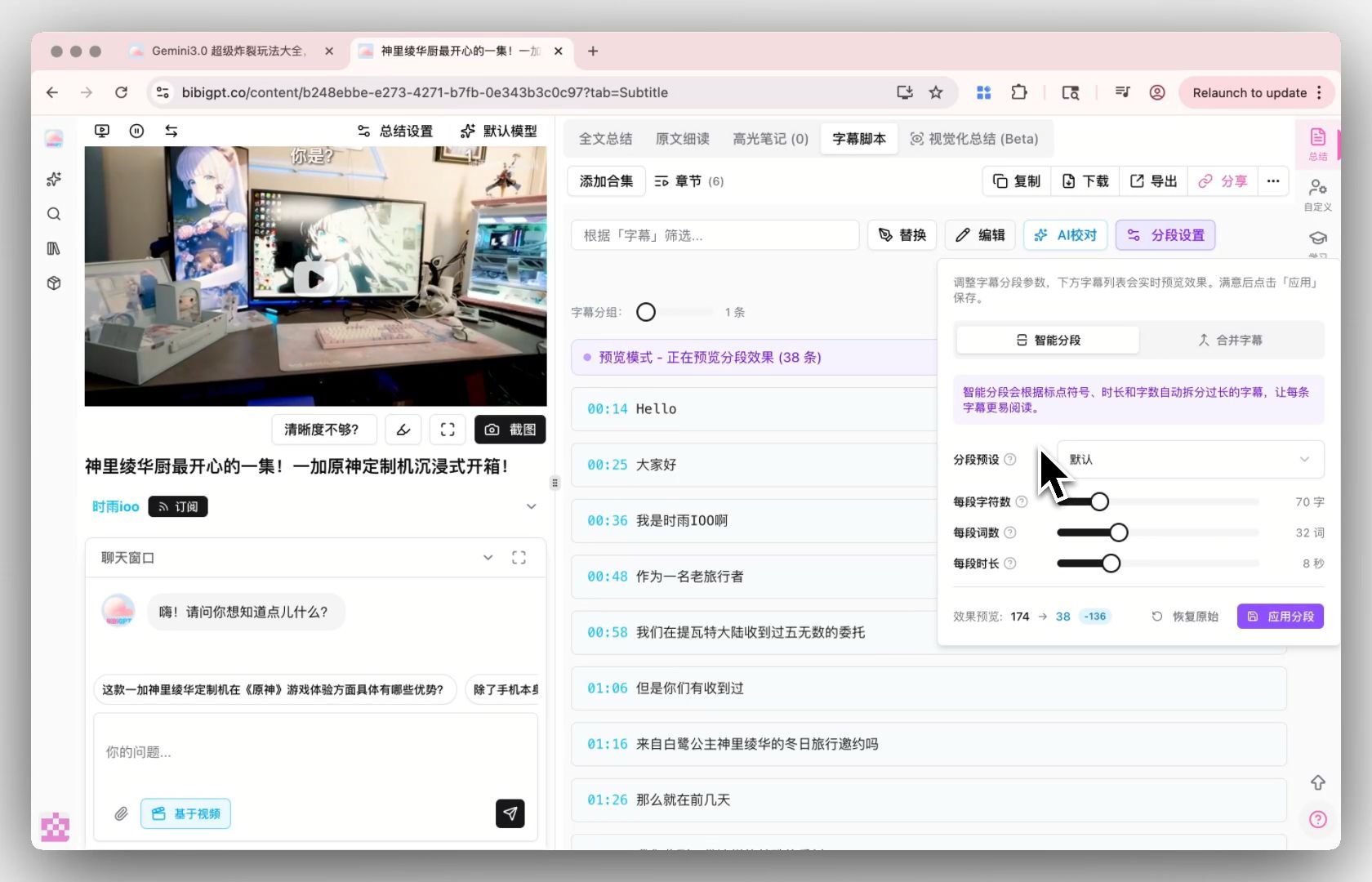
Screenshot: BibiGPT · smart subtitle segmentation — each line keeps a duration you can jump back to.
Creators need show notes they can cut. Students need a keyword that jumps back to the slide. Teams need a file they can archive. The missing object in every case is a reusable transcript, not a streaming demo.
Practical rule: Treat the transcript as the API for everything downstream. Summary quality cannot exceed transcript quality — so pick the engine for the words, not for the blog post.
How do you transcribe a YouTube or TikTok video to text?
Paste the URL, get a transcript, then export. That is the whole path. You do not start in an API console unless you already have a clean audio file.
The data flow looks like this:
YouTube / TikTok / local file
        │
        ▼
  fetch captions, or transcribe audio
        │
        ▼
  transcript + optional speaker labels
  + word-level timestamps
        │
        ├── SRT / VTT / plain text
        ├── searchable notes
        └── chapter summary / follow-up Q&A
The screenshot below is the “pick an engine, then transcribe” control you want in that loop — not a blank API console:
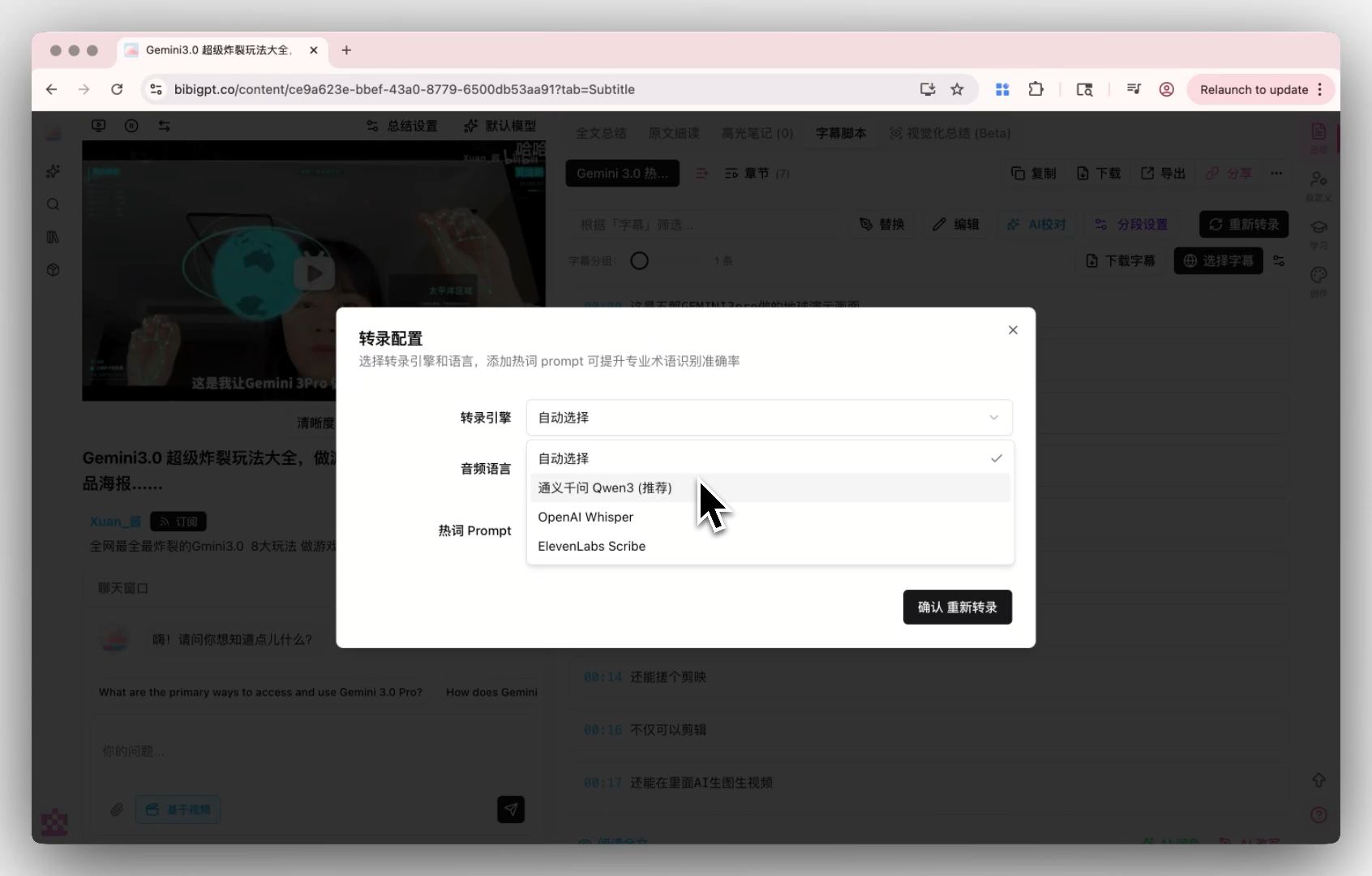
Screenshot: BibiGPT · custom transcription engine — re-transcribe from audio when platform captions are not good enough.
A working loop, in order:
- Start from the URL or the file you actually have. YouTube, TikTok, a podcast, or a local recording — do not transcode first “just in case.”
- Prefer existing captions when they are trustworthy. Official subtitles beat a fresh ASR pass. Re-transcribe when names, numbers, or jargon are wrong.
- Turn on speaker labels only for multi-voice recordings. Interviews and panels need them. A single-narrator explainer usually does not, and diarization shortens the allowed duration.
- Export two artifacts. Keep an SRT or VTT for locating; keep a plain-text copy for reading and for pasting into notes.
- Only then summarize or rewrite. A chaptered summary on top of a clean transcript is cheap. A summary on top of broken auto-captions is fiction.
If the source is YouTube, a dedicated YouTube transcript generator is the shortest path from link to text. If the source is a short, the matching entry is TikTok video to text. Both sit in the same video-to-text converter cluster as the broader converter tools — pick the page that matches the platform in your clipboard.
The demo below is the “paste a link, get timestamped takeaways” shape before you bring any particular engine into it:
Summarize any video in seconds
Pick a sample below to see the AI summary — TL;DR, key points, and jump-to timestamps.
TL;DR: Karpathy builds a GPT-style language model from scratch in code, explaining every piece — from a tiny character-level model up to the full Transformer.
Key points
- Start with a bigram model, then add self-attention so tokens can "talk" to each other
- A Transformer block = multi-head attention + feed-forward + residual connections + layer norm
- Training is just predicting the next token; scale and data do the rest
- The same architecture behind nanoGPT is what scales up to ChatGPT
Jump to
- 00:07 Why build GPT from scratch
- 08:23 Self-attention, intuitively
- 1:00:00 Assembling the Transformer block
- 1:35:00 From nanoGPT to ChatGPT
Demo: paste a video URL and get chaptered, timestamped takeaways — the workflow Gemini 3.5 Transcribe sits inside, not instead of.
When YouTube already has a caption track, you can also show, hide, and download timestamps from the player. Use that when the official captions are good. Re-transcribe from audio when they are not.
A platform-agnostic alternative, if you bounce between YouTube, TikTok, and local files, is the roundup of free AI video-to-text converter tools — same cluster, different entry point.
Decision filter: If the source is a URL, start with a video-to-text workflow. If the source is a WAV you already exported, the Gemini API is enough.
How do you use Gemini 3.5 Transcribe as a selectable engine?
Open the transcript settings, pick Gemini 3.5 Transcribe, paste your own Google AI Studio key, optionally add hotwords and a speaker count, then re-transcribe. It is a user-selectable engine, billed at the upstream price — not a silent default.
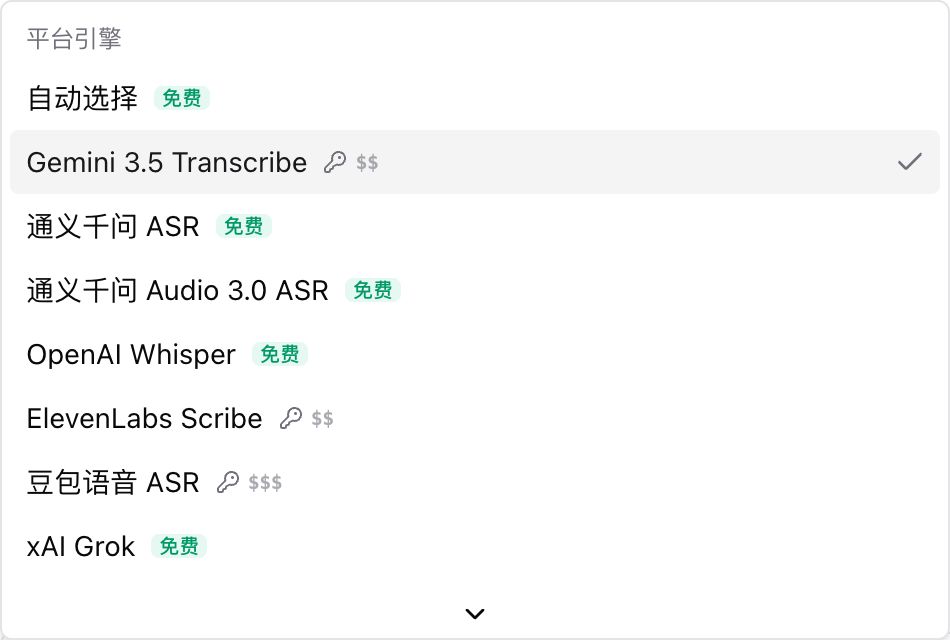
On BibiGPT, that lives in the subtitle workshop: Re-transcribe → Transcription configuration → Transcription service. Gemini 3.5 Transcribe appears in the platform-engine group with a key icon, in the same bring-your-own-key tier as ElevenLabs and Doubao Speech. After you select it, the dialog asks for a Google Gemini API key (issued at Google AI Studio), optional hotwords for names and jargon, and a speaker count.
The dropdown is the receipt that the engine is something you can point at, not a slogan on a changelog:
Screenshot: BibiGPT · Transcription service dropdown, Gemini 3.5 Transcribe with a key icon.
Once selected, the same dialog is where you actually configure the run — key, hotwords, speakers — instead of hoping a default stack guessed the domain vocabulary:
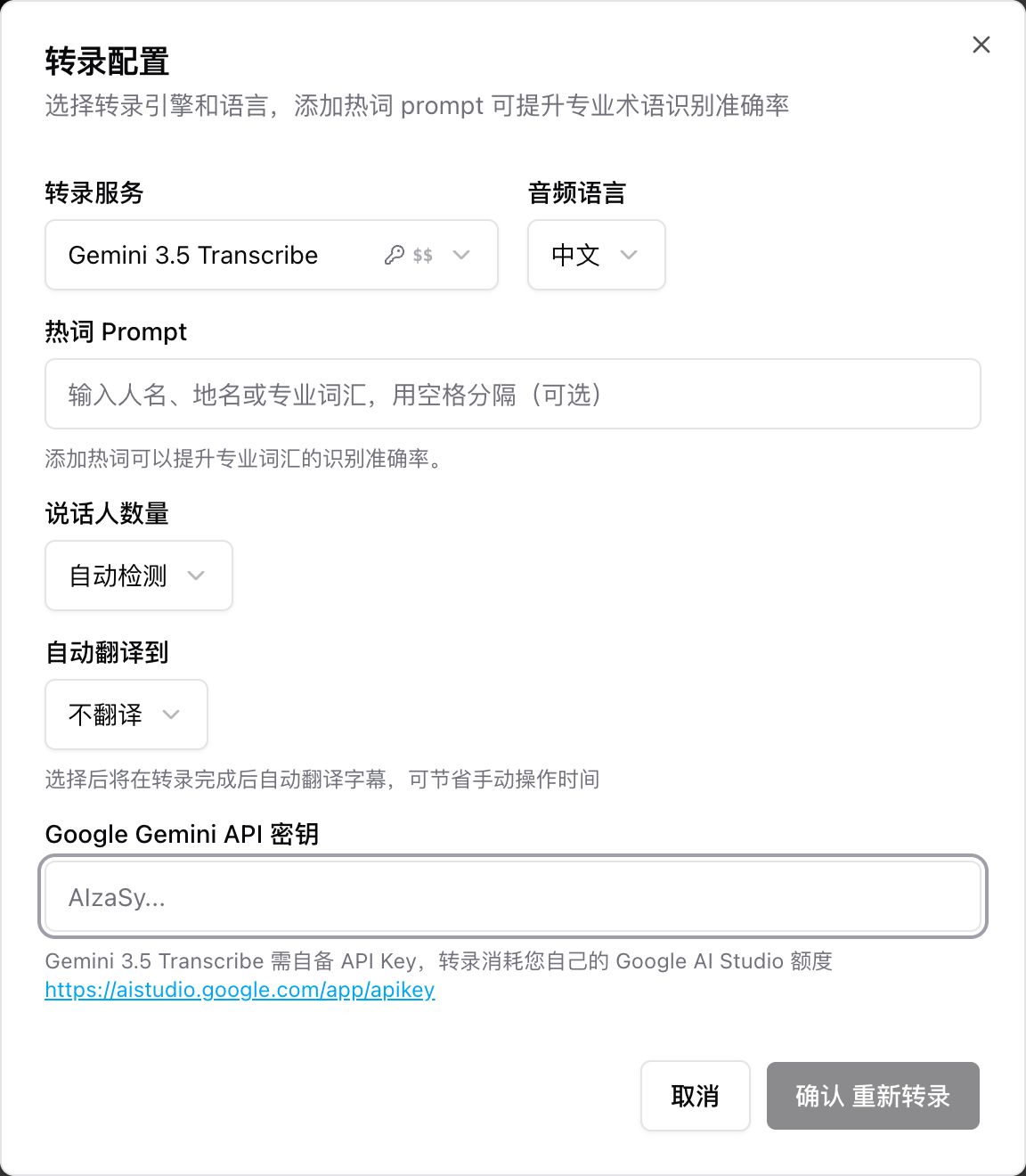
Screenshot: BibiGPT · key, hotwords, and speaker count after selecting Gemini 3.5 Transcribe.
Why use this inside a video product instead of calling the API from a notebook?
- The URL layer is already solved. You paste a YouTube, TikTok, or local file. You do not write a downloader.
- The export layer is already solved. SRT, VTT, and plain text are one click, which is the difference between a demo and an asset. See the multi-format transcript download path if you need a file, not a chat bubble.
- Hotwords map onto custom vocabulary. The model card’s “up to 1,000 terms” is the same idea as the hotword field: bias the recognizer toward the names in this video.
- You can still pick a different engine next time. Support is not a lock-in. If Gemini 3.5 Transcribe is the wrong tool for a noisy single-speaker lecture, switch.
BibiGPT has served over 1 million users and generated more than 5 million AI summaries. The useful part of that number here is not the vanity total — it is that the product already sits on 30+ platforms, so the new engine inherits a fetch-and-export path instead of starting from a WAV.
Do not read “supports Gemini 3.5 Transcribe” as “this is what every video is transcribed with.” It is on the list. You turn it on when you want its speaker labels, vocabulary biasing, and multilingual detection for that file.
Should you use the API, live captions, or a video-to-text product?
Use the file API when you already have audio. Use live mode for a voice agent. Use a video-to-text product when the source is a platform URL and you need an export. Mixing those three is how people end up with a 10-minute live stream and no SRT.
| Path | Best for | Speaker labels | Word timestamps | Paste a video URL | Effort |
|---|---|---|---|---|---|
| Gemini file API | Audio you already exported | Yes (up to 3; 3+ experimental) | Yes | No | High — upload, cap duration, parse JSON |
| Gemini Live API | Voice agents, live captions | No | No | No | High — session limits, no file export |
| Video-to-text product | Creators, students, researchers | If you select an engine that supports them | Yes, as SRT/VTT | Yes | Low — paste the link |
Privacy and cost follow the same split. The API is yours to run, log, and pay for per request. A product workflow charges against the plan you already have, unless you bring your own key, in which case you pay Google directly for that engine. Neither path is “free speech-to-text for every language forever.”
A second honest limit: this article is a public-spec walkthrough, not a lab bake-off. Google’s WER numbers are the vendor’s. Independent tests on noisy classrooms and overlapping speakers will take weeks to settle. Treat 2.6% as a published average, not a promise about your recording. The same duration split is in Google’s audio transcription guide: live sessions around 10 minutes, batch files up to an hour, 30 minutes if you need diarization.
Two predictions we are willing to be proven wrong on:
- By March 2027, most video-to-text tools will expose speaker labels as a default export field, not an API-only flag. If the common export is still a single undifferentiated blob, this prediction is wrong.
- By September 2027, Gemini Live still will not carry speaker labels and word-level timestamps. If the live endpoint ships both, count this one wrong — and the “two products” table above should be rewritten.
Full disclosure: BibiGPT sells the URL-to-transcript path, so the table above is not a disinterested lab note. The deadline is there so it can be checked.
Practical rule: Ask one question first — do you need a file you can search later, or a caption that appears while someone is still talking? That single answer picks the column.
What should you do with the transcript once you have it?
Export it, then put it to work. A transcript that stays in the transcriber is a demo; a transcript that becomes notes, subtitles, or a brief is the point.
Five steps that hold up:
- Lock the source. Keep the original URL or file next to the transcript so every timestamp still has a place to land.
- Export SRT or VTT plus a plain-text copy. One is for the player and for editors; the other is for reading and for pasting into docs.
- Search before you re-watch. If you cannot find a sentence in under ten seconds, the transcript is not done — re-transcribe with hotwords, or fix the speaker labels.
- Rewrite only after the words are stable. Show notes, a blog draft, and a chapter summary all inherit errors. Do not generate them on a first-pass auto-caption.
- File it where you already take notes. Notion, Obsidian, or a shared drive — the destination is whatever your team already opens on Monday.
The export step is the one most API demos skip. A JSON blob of word offsets is complete for a developer and useless for a producer. The screenshot below is the boring, correct ending: pick a format and download it.
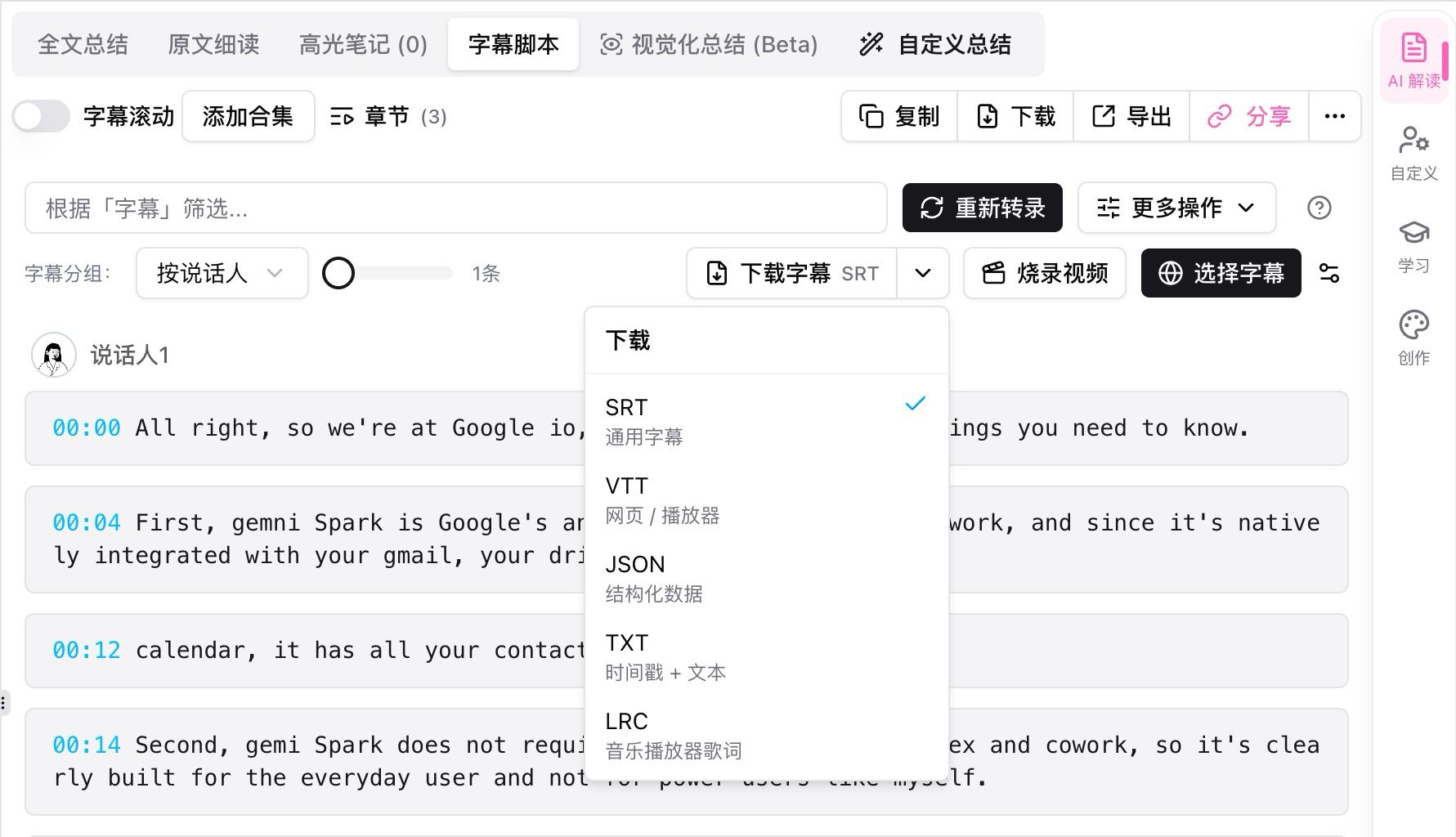
Screenshot: BibiGPT · multi-format transcript download — SRT, VTT, or plain text, your call.
If you want the same recording as bilingual subtitles rather than a transcript file, that is a different job — closer to the Live Translate confusion we flagged earlier, and closer to a dedicated subtitle pass than to raw speech-to-text.
The people who get the most from Gemini 3.5 Transcribe will not ask “is this the best speech-to-text model.” They will ask “does this recording become a file I can search by Thursday.” Paste a YouTube or TikTok link into BibiGPT, pick Gemini 3.5 Transcribe when you want that engine, and export the format you actually edit in.
Start from the URL you already have:
- 🌐 YouTube transcript: YouTube transcript generator
- 📱 TikTok video to text: TikTok video to text
- 💻 Any video to text: Video to text converter
- ✨ Desktop: BibiGPT desktop
FAQ
What is Gemini 3.5 Transcribe?
It is Google’s speech-to-text model, launched on 26 August 2026 as the successor to Chirp 3. It auto-detects 85+ languages, and on recorded audio it can add speaker labels and word-level timestamps. It is not a live translator and not a general video-understanding model.
What is the difference between Gemini 3.5 Transcribe and Gemini 3.5 Transcribe Live?
The file endpoint (gemini-3.5-transcribe) handles pre-recorded audio and is the one with speaker labels and word-level timestamps. The live endpoint (gemini-3.5-transcribe-live) streams captions for voice agents and live overlays; it does not diarize speakers and does not emit word-level times.
Can Gemini 3.5 Transcribe transcribe a YouTube or TikTok video if I only have the link?
Not by itself. The API wants audio. A video-to-text product fetches the source, transcribes it, and exports SRT or plain text. If you only have a URL, start there rather than downloading by hand.
Does BibiGPT support Gemini 3.5 Transcribe?
Yes. It is a selectable transcription engine in the subtitle workshop’s transcription configuration. You bring your own Google AI Studio key; you can add hotwords and a speaker count. Support is not the same as a hidden default.
How accurate is Gemini 3.5 Transcribe?
Google cites an average 2.6% WER for non-streaming and 4.0% WER for streaming, measured by Artificial Analysis, plus 5.04% / 5.50% WER on FLEURS for a set of top locales. Those are published averages, not a guarantee for noisy rooms or overlapping speakers.
BibiGPT Team
Popular tools
More in this series
- Video to Text Complete Guide (2026 Updated): YouTube Subtitle Download, Cloud Drives, Bilibili Courses & Multi-Source Solutions
- Best Xiaohongshu Video to Text Tool in 2026: BibiGPT Helps You Create Viral Posts Easily!
- AI Subtitle Translation Workflow Guide 2026: Extract, Translate & Hardcode with BibiGPT
- AI Subtitle Translation Tools 2026: 6 Platforms That Translate + Burn-in in One Pass
- AI Video to SRT is Offline Only — BibiGPT Extracts Subtitles from 30+ Platforms with AI Summary