BibiGPT v4.598.0: WeChat ClawBot and Agent Skill

Hey there, BibiGPT friends 👋
Over the past few days, BibiGPT shipped another round of updates. This week’s through-line is Agent: scan once in WeChat, drop in a video link, and you get the summary back; WorkBuddy, Doubao Work, and Qwen Work can install the Skill too. On the read-faster side, audio/video summaries get a quicker model tier; tap the mini-player button on the player toolbar, shrink it, and you can keep listening while you go back to the summary.
🛠️ Put it to work
Scan in WeChat and send links to BibiGPT
You are on your phone, you hit a good video, and you do not want to open the website just to paste.
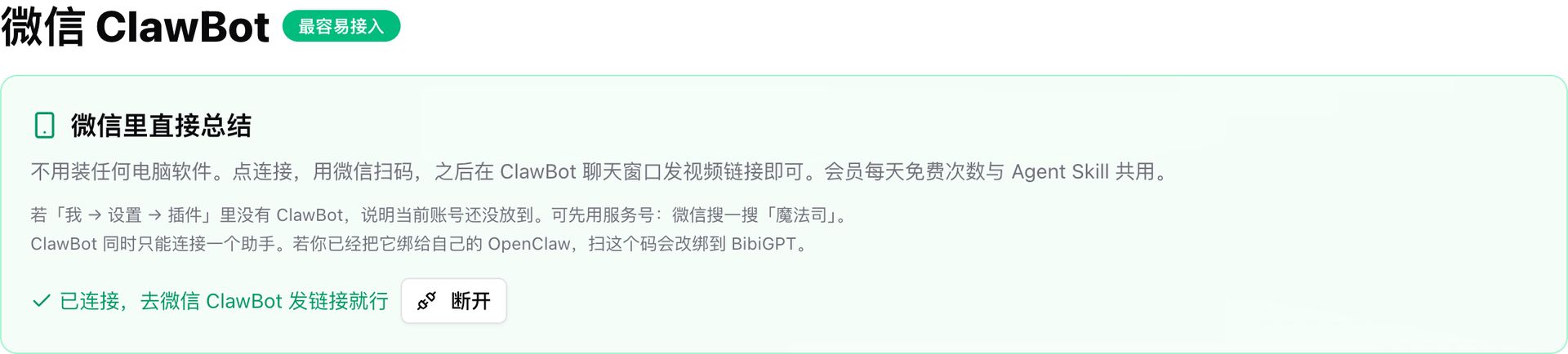
Where: bibigpt.co → avatar / account → Personal settings / Note integrations or Account → the “WeChat ClawBot” card (labeled “easiest to connect”).
Tap connect, open WeChat → Me → Settings → Plugins → ClawBot, scan, then send a video link in the ClawBot chat. No desktop app. If ClawBot is not in the plugin list yet, use the Official Account “魔法司” first. Daily free member quota is shared with Agent Skill.
Screenshot: BibiGPT · “WeChat ClawBot” in Personal settings / Note integrations, labeled easiest to connect
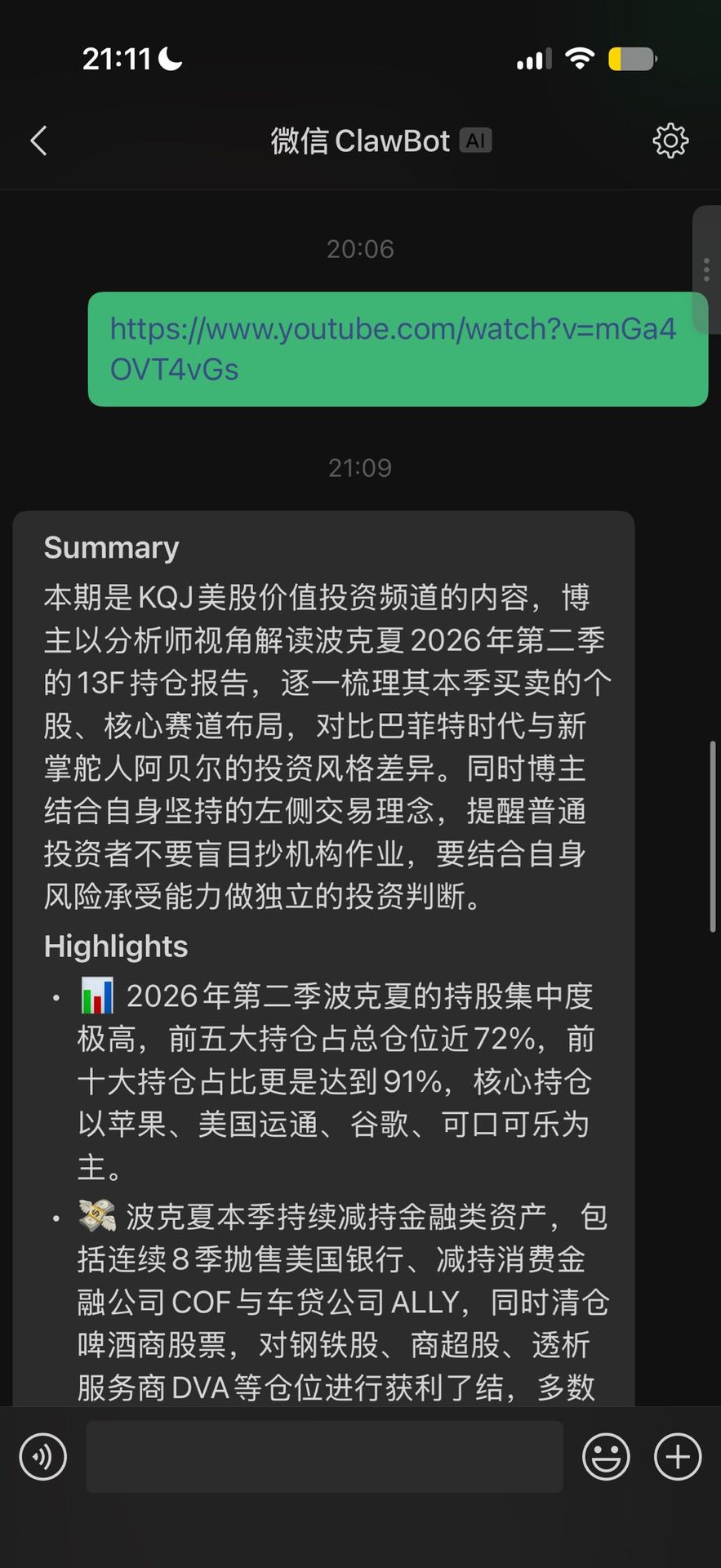
Screenshot: WeChat · after connecting ClawBot, send a YouTube link and get Summary and Highlights
Agent Skill adds three assistant guides
If you want BibiGPT Skill in these assistants, the install page used to cover mainly ChatGPT and Claude.
Where: open the Agent Skill install page, or Account → Open platform → Agent Skill. The page now has sections for WorkBuddy, Doubao Work, and Qwen Work.
When members summarize through an assistant: Plus gets 100 free runs per day, Pro gets 300, then balance. Web membership quota stays on the web.
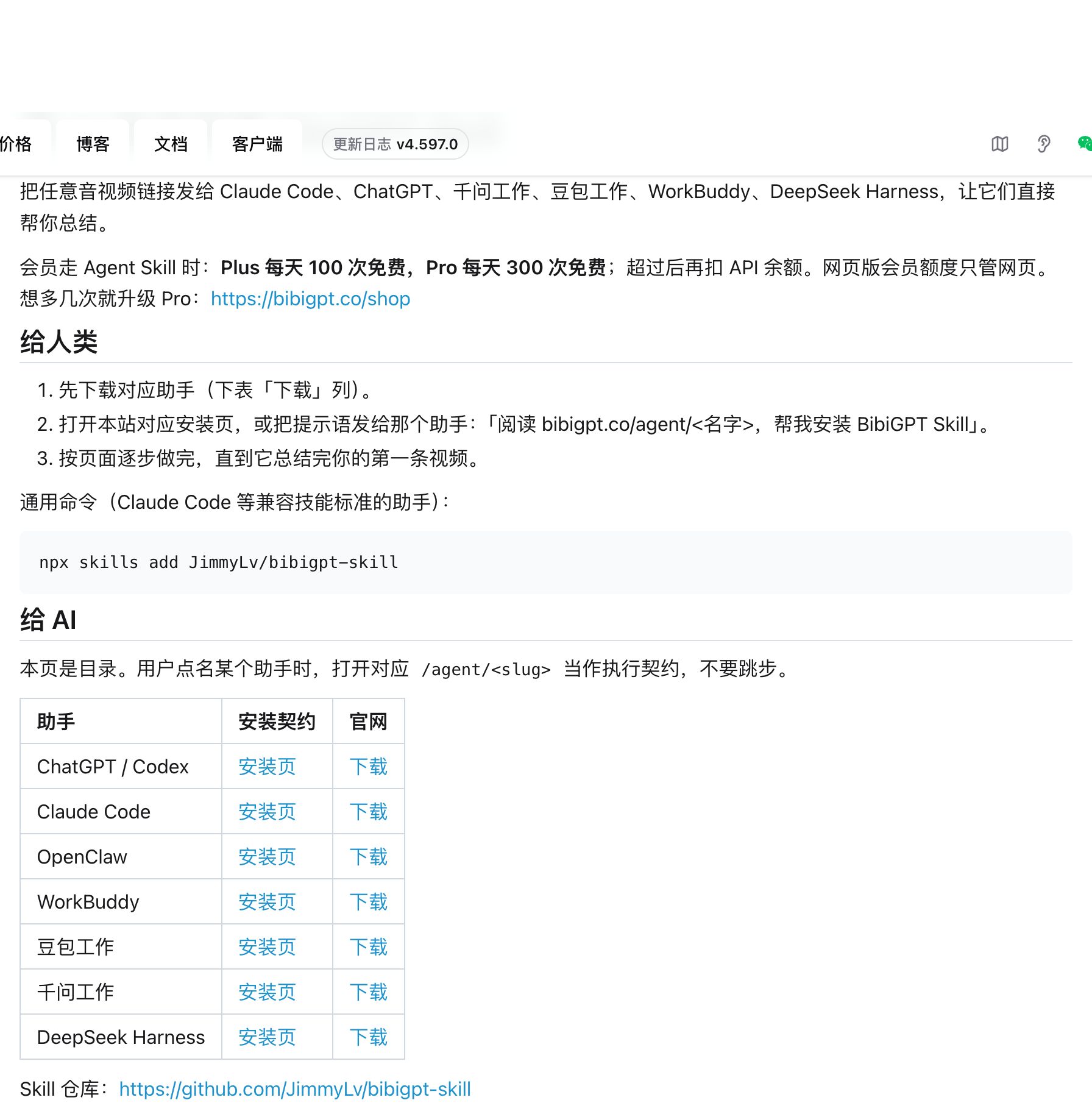
Screenshot: BibiGPT · /agent install page, WorkBuddy / Doubao Work / Qwen Work
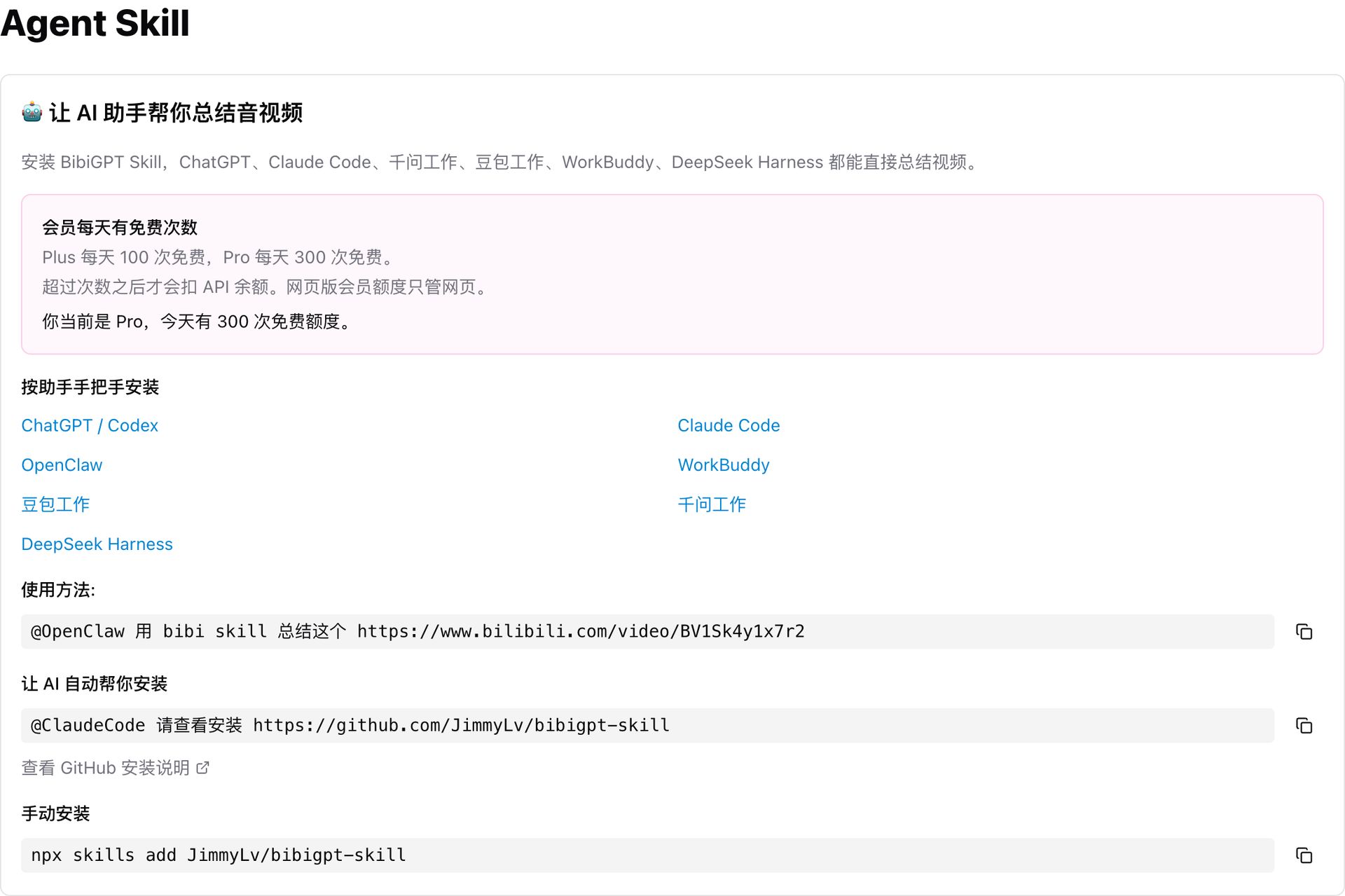
Screenshot: BibiGPT · Agent Skill on the Open platform, with daily free runs spelled out
Summaries can push to the ima knowledge base
After a summary, sending it into Tencent ima used to mean export then paste. It now sits with Notion and Feishu.
Where: bibigpt.co → avatar / account → Personal settings / Note integrations → Note export → “ima” (with New). Bind ima Client ID and secret, pull writable knowledge bases, then auto or manual Markdown push. Credentials go to ima only. The summary page can push by hand too.
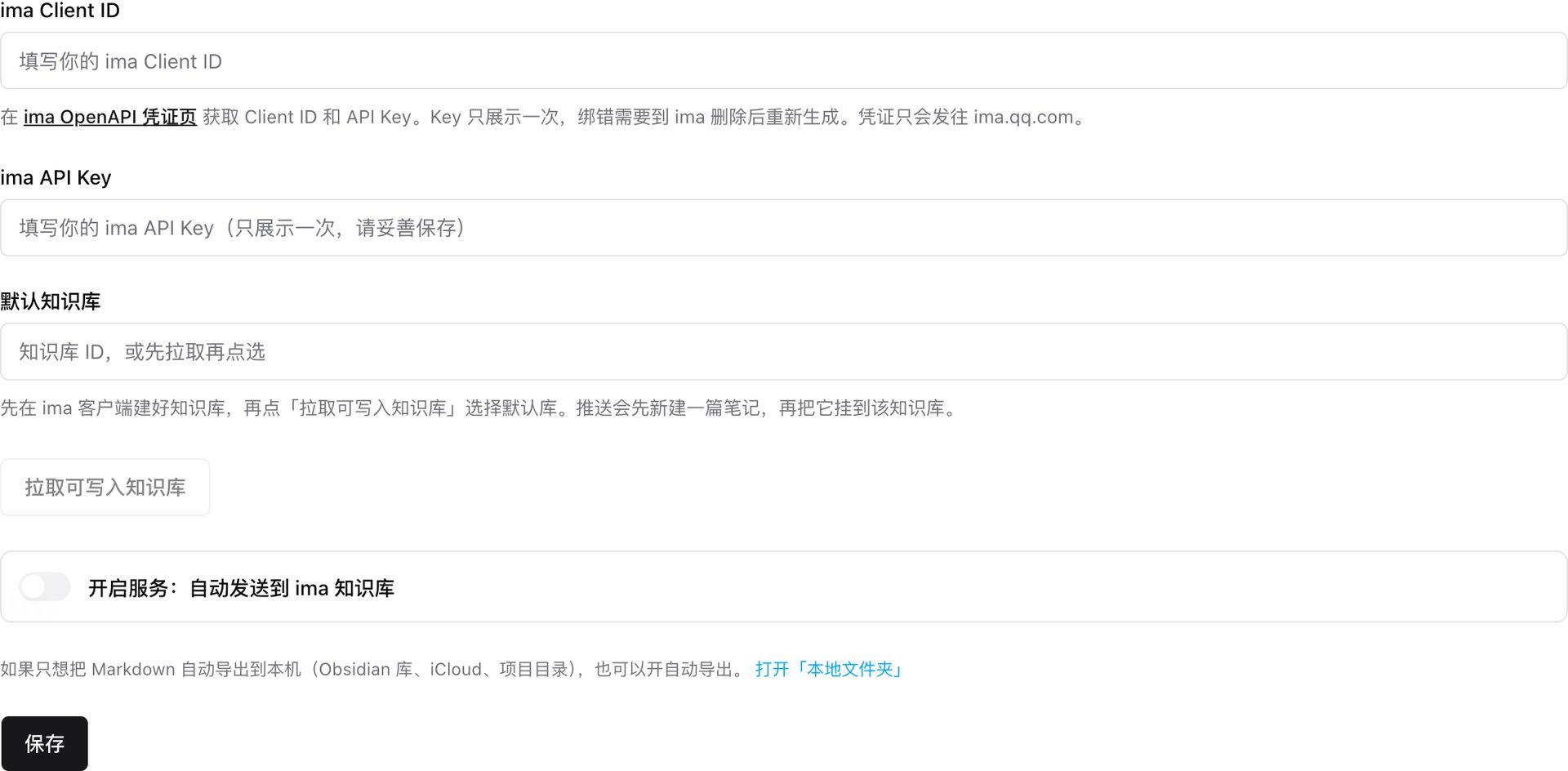
Screenshot: BibiGPT · ima in Note export, Client ID, secret, and knowledge base
⚡ Read faster
3 faster models for audio/video summaries
When you summarize or ask follow-ups, you often want to try a quicker tier first.
Where: open any summary or AI chat → tap the model name at the top → “Select model”. Search “glm”, “qwen3.8”, or “hunyuan”.
This week audio/video summaries and chat gain 3 selectable models:
- Zhipu: GLM-5.3-Flash: the faster, non-Pro tier in the Zhipu group, with New. Not last issue’s flagship GLM-5.3 (that one is still there, membership-marked). Details: Zhipu GLM-5.3-Flash official docs.
- Qwen3.8 Flash: the faster same-series tier in the Alibaba group, with New. Same-series Qwen3.8 Max and Qwen3.8 27B were already selectable; what is new is Flash. Details: Qwen3.8-Flash official model card.
- Tencent: Hunyuan 4 Preview: in the Tencent group, with New. Same-series Hunyuan 3 was already selectable. Tencent often writes it as Hy4 Preview. Details: Hunyuan Hy4 Preview official model card.
Re-summarize the same content with a different model to compare side by side. The diamond icon marks the membership tier.
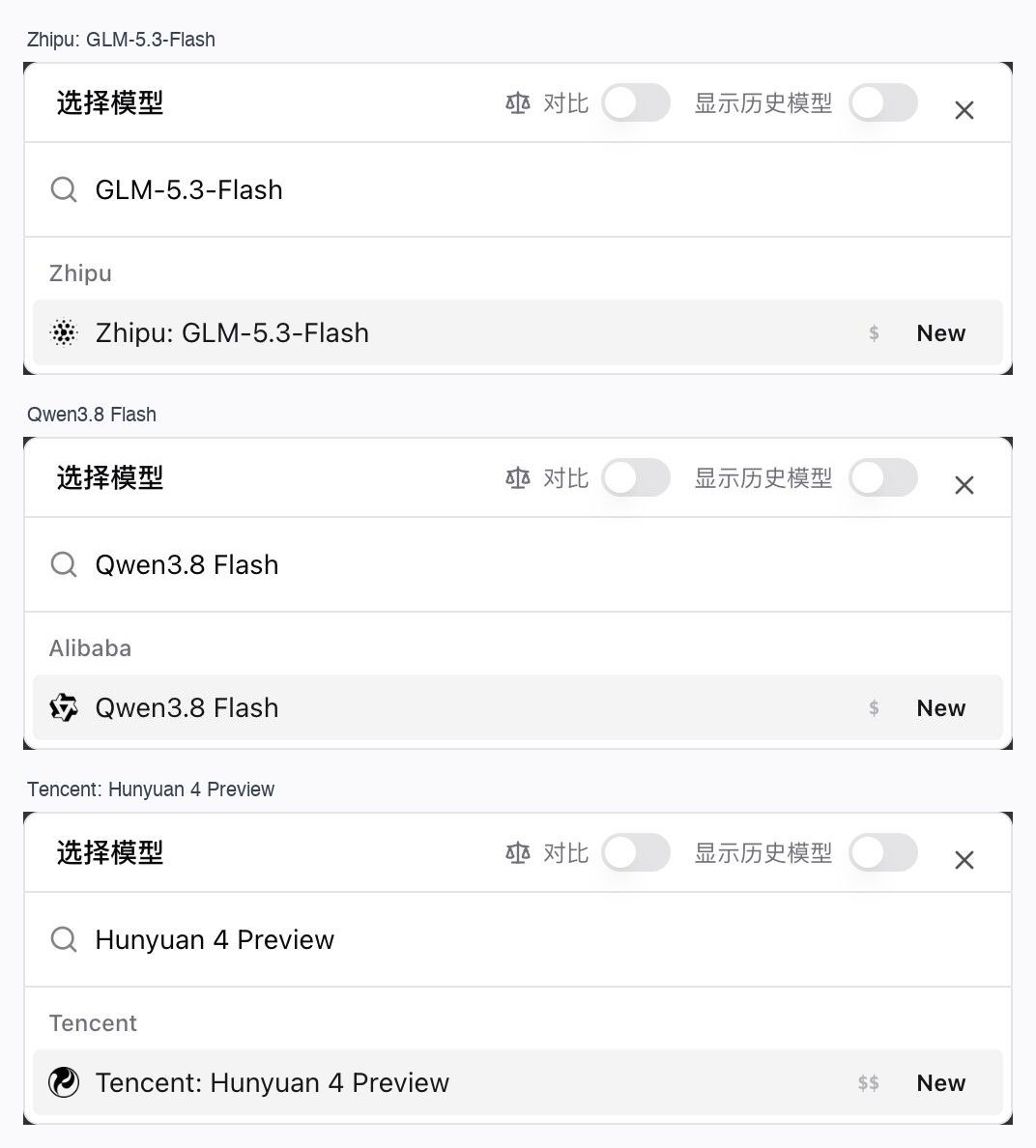
Screenshot: BibiGPT · GLM-5.3-Flash, Qwen3.8 Flash, and Hunyuan 4 Preview in “Select model”, all with New
Shrink it into a draggable card
After a clip, you want to go back through the summary. Shrink now lands a card in the bottom-right: the title bar drags, the edges scale with the picture, and the position is remembered. You can also fold the picture and keep audio playing.
Where: open any summary page → look at the player bottom toolbar → tap the mini-player button (picture-in-picture / rectangle-in-rectangle, next to screenshot and loop). The player then shrinks into a draggable bottom-right card.
On a narrow window, loop, screenshot, and immersive mode move into ”… → Playback tools”. This is not a new player — playback was always there; what is new is the shrunk form, and that you can keep reading the summary.
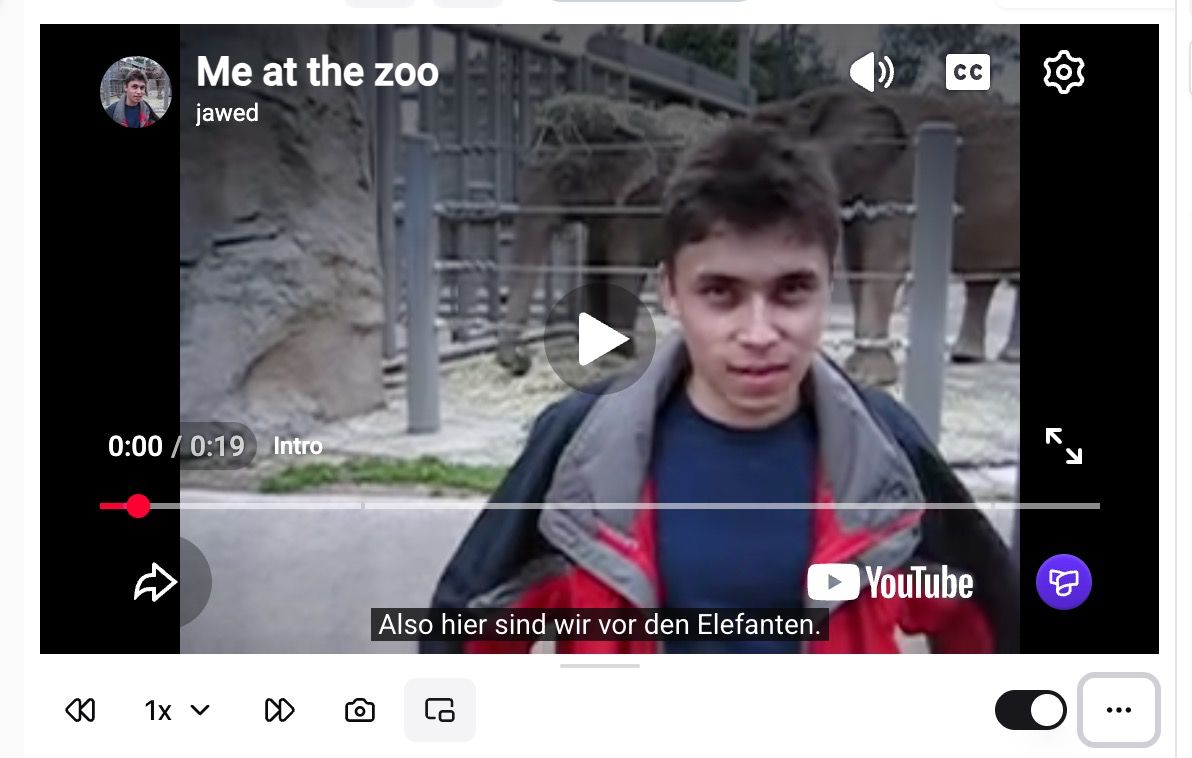
Screenshot: BibiGPT · player bottom toolbar, mini-player button next to screenshot / loop (tap it to shrink)
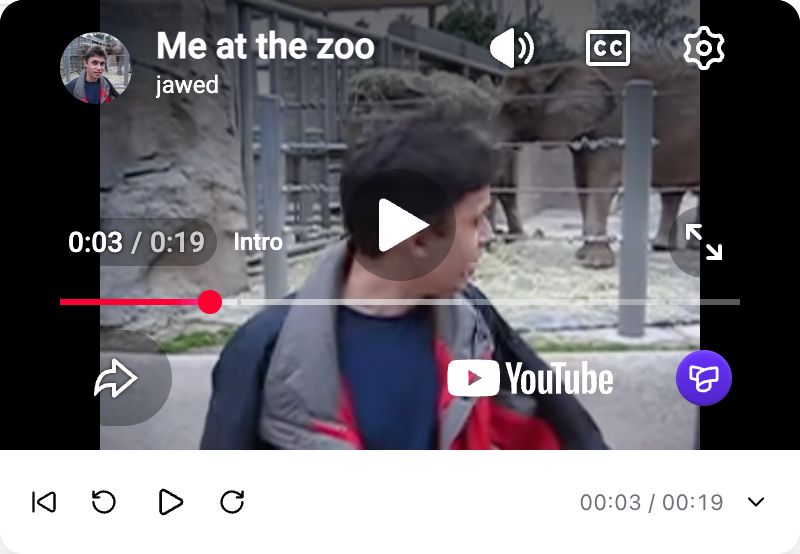
Screenshot: BibiGPT · the floating card after shrinking, draggable and resizable
🔎 Find it
Transcription can use Gemini 3.5
If Subtitle Studio wants to try Google Gemini 3.5 speech-to-text, it is now in the “Transcription service” dropdown.
Where: open any item → Subtitle Studio → “Re-transcribe” → “Transcription settings” → “Transcription service” dropdown.
Gemini 3.5 Transcribe is new in “Transcription service”, with a key icon, same tier as ElevenLabs and Doubao Speech — you bring your own key. After selecting it you can fill hotwords and speaker count. Last issue’s platform-engine / bring-your-own-key grouping is still there. Details: Gemini 3.5 Transcribe official post.
Those names sit in the dropdown you can open yourself.
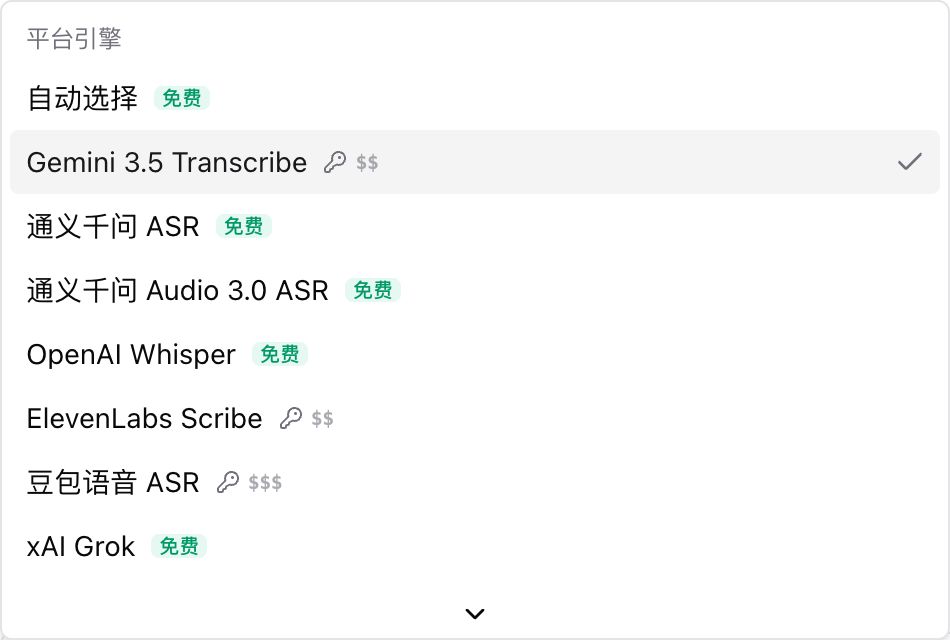
Screenshot: BibiGPT · Gemini 3.5 Transcribe in the “Transcription service” dropdown, with a key icon
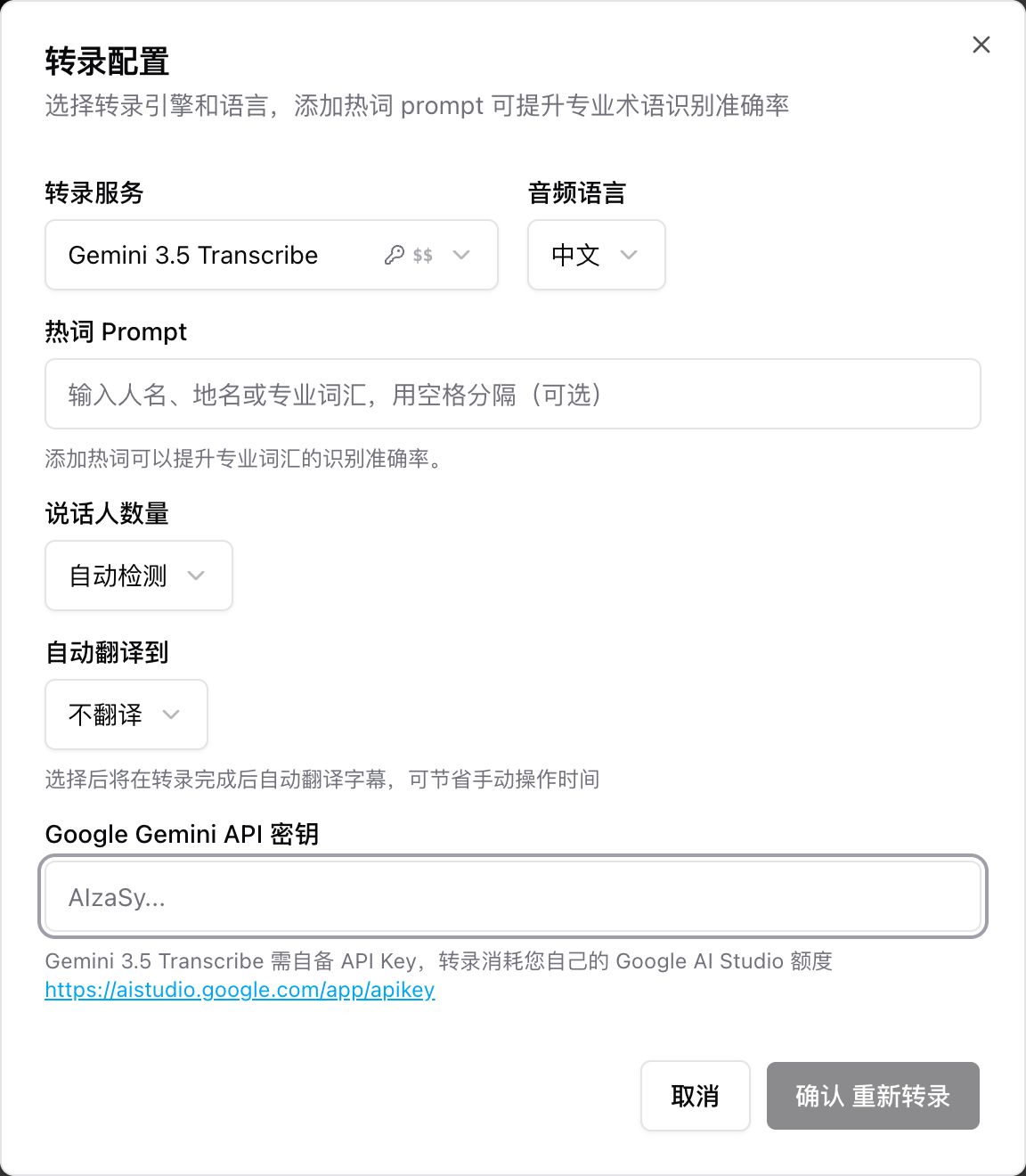
Screenshot: BibiGPT · after selecting it, fill key, hotwords, and speaker count
Other recent polish
- After confirming a local upload you can close the dialog; progress stays in the top-right, no need to stare at the modal
- Outputs has an “All” tab, and picking it does not drop the other tabs
- Channel updates can use a custom summary template again
- Pasting YouTube, Douyin, and Channels links is more stable, and failure copy is in plain language
- Timestamps past 99 minutes still render as the same capsule as the rest
Wrap-up
Start with WeChat ClawBot and Agent Skill this issue — one for dropping in a link the moment you see it on your phone, one for using it inside an assistant. GLM-5.3-Flash, Qwen3.8 Flash, and Hunyuan 4 Preview in the audio/video summary model picker, plus the mini-player button on the player toolbar, are easy to try on the way.
Ideas or issues? Leave us a note on the WeChat Official Account “魔法司”.
- 🌐 Website: bibigpt.co
- ✨ Explore features: bibigpt.co/features
- 💻 Desktop app: bibigpt.co/download/desktop
- 📱 Mobile app: bibigpt.co/app
The BibiGPT Team
Popular tools
More in this series
- AI Competitive Intelligence Workflow: Build Industry Monitoring with BibiGPT Video Summaries
- Lessons From Shipping BiliGPT: Two Cold-Start Growth Tactics Behind a GPT-3 Side Project
- [BibiGPT Growth Series] Episode 1 | How AI Summaries for Bilibili Were Born
- BibiGPT Advanced Guide 2026: Download + AI-Summarize Videos from WeChat Channels, RedNote, TikTok, and Enterprise Intranet Sites
- Chat with Any Video: How to Ask AI Questions About Videos Instead of Watching the Whole Thing (2026)